Google Easy Embed
The easiest way to embed Google
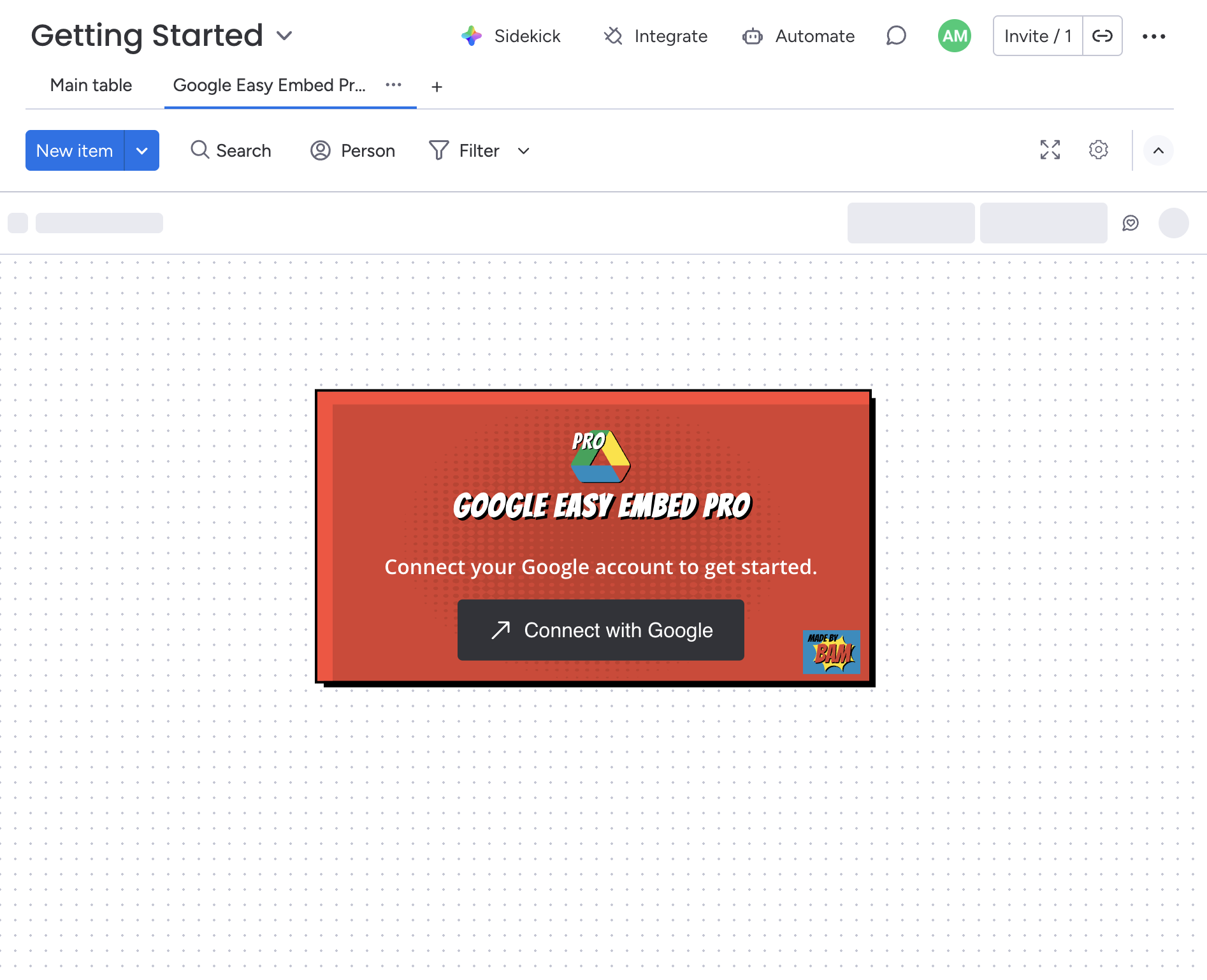
Connect Google and Embed with one click. No more searching out share links and messing around with permissions in another window. Keep your work flowing in one place!
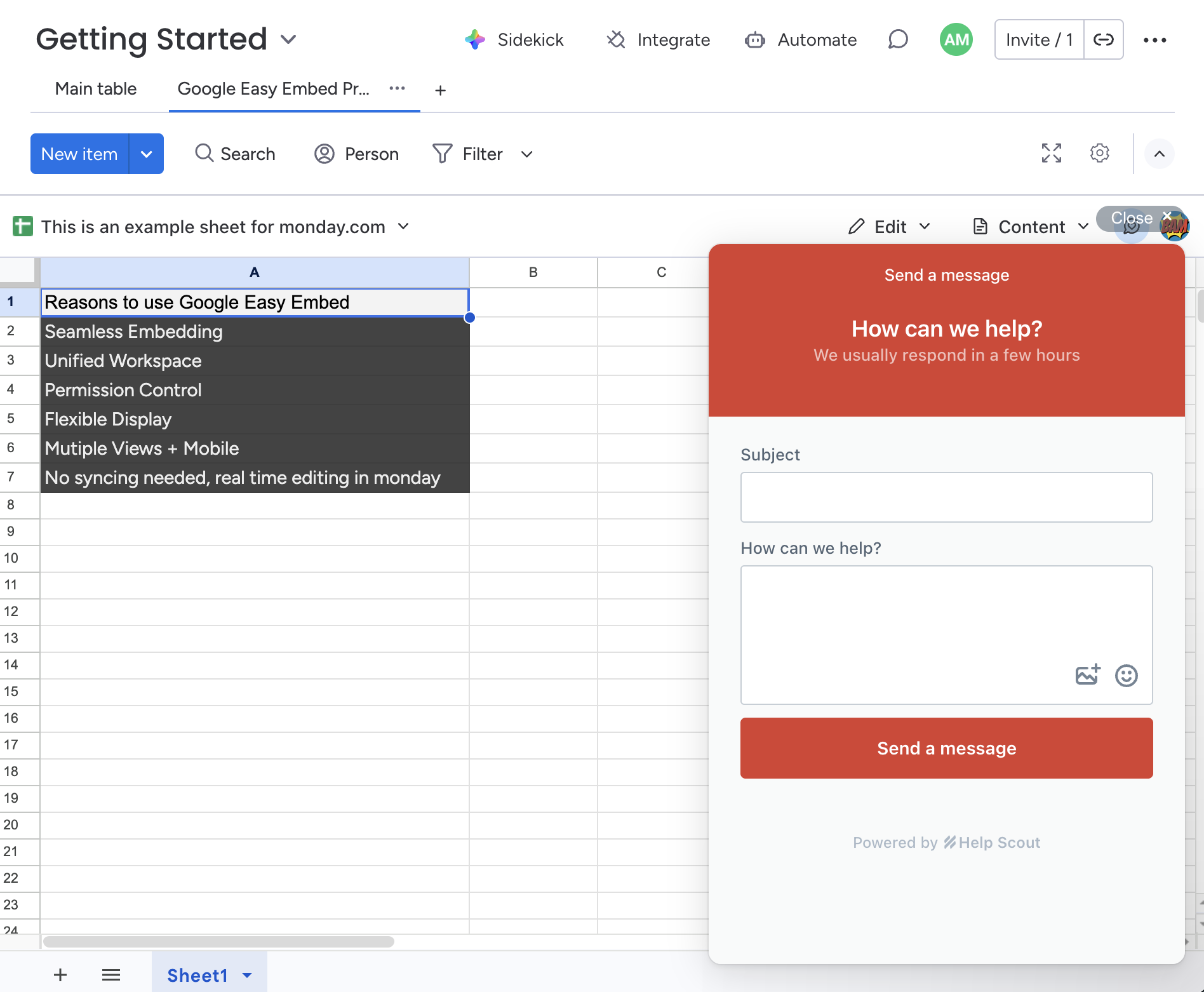
One Click Embed in monday.com
Google Easy Embed lets you embed Google Docs, Sheets, Slides, Forms, and Drawings directly into your monday.com boards — so your team can view and collaborate on documents without ever leaving the platform.
Key Features
- Embed Google Docs — View and collaborate on documents in real time
- Embed Google Sheets — Access spreadsheets directly from your boards
- Embed Google Slides — Present and review slides without switching tabs
- Embed Google Forms — Collect responses and manage forms without leaving your board
- Embed Google Drawings — View and edit diagrams and illustrations inline
Getting Started
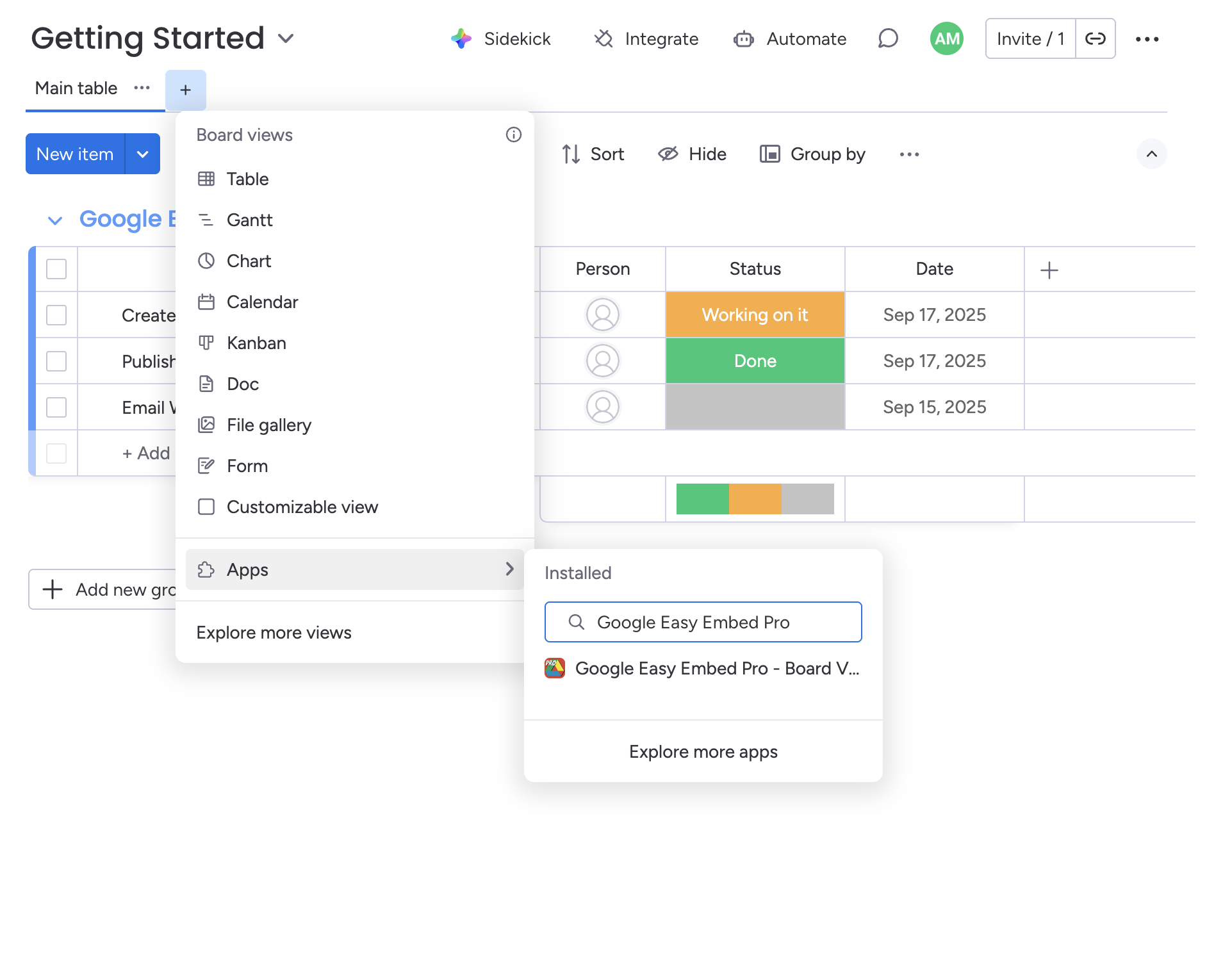
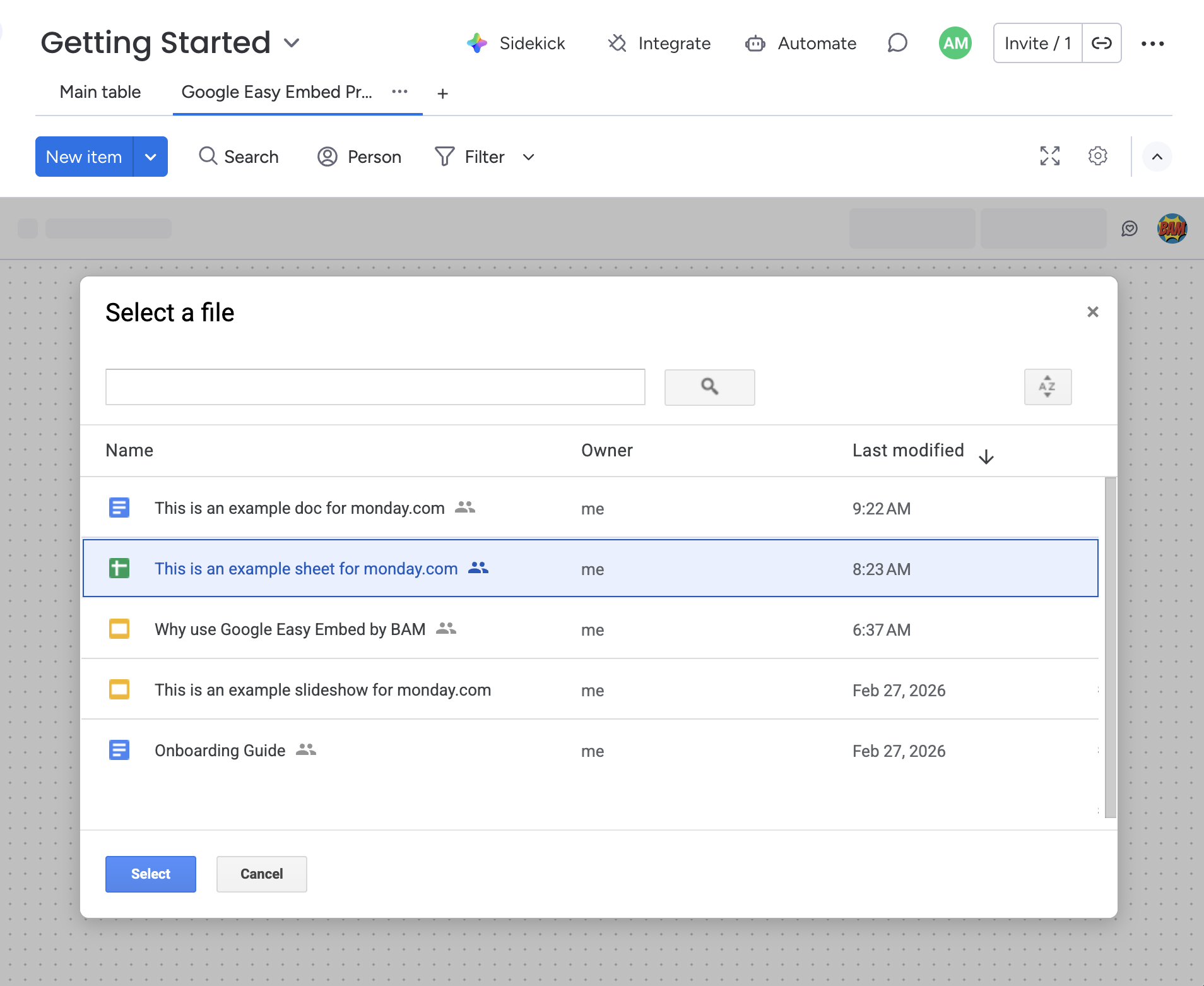
Open any board, click the "+" to add a view, and select Google Easy Embed.
More Features
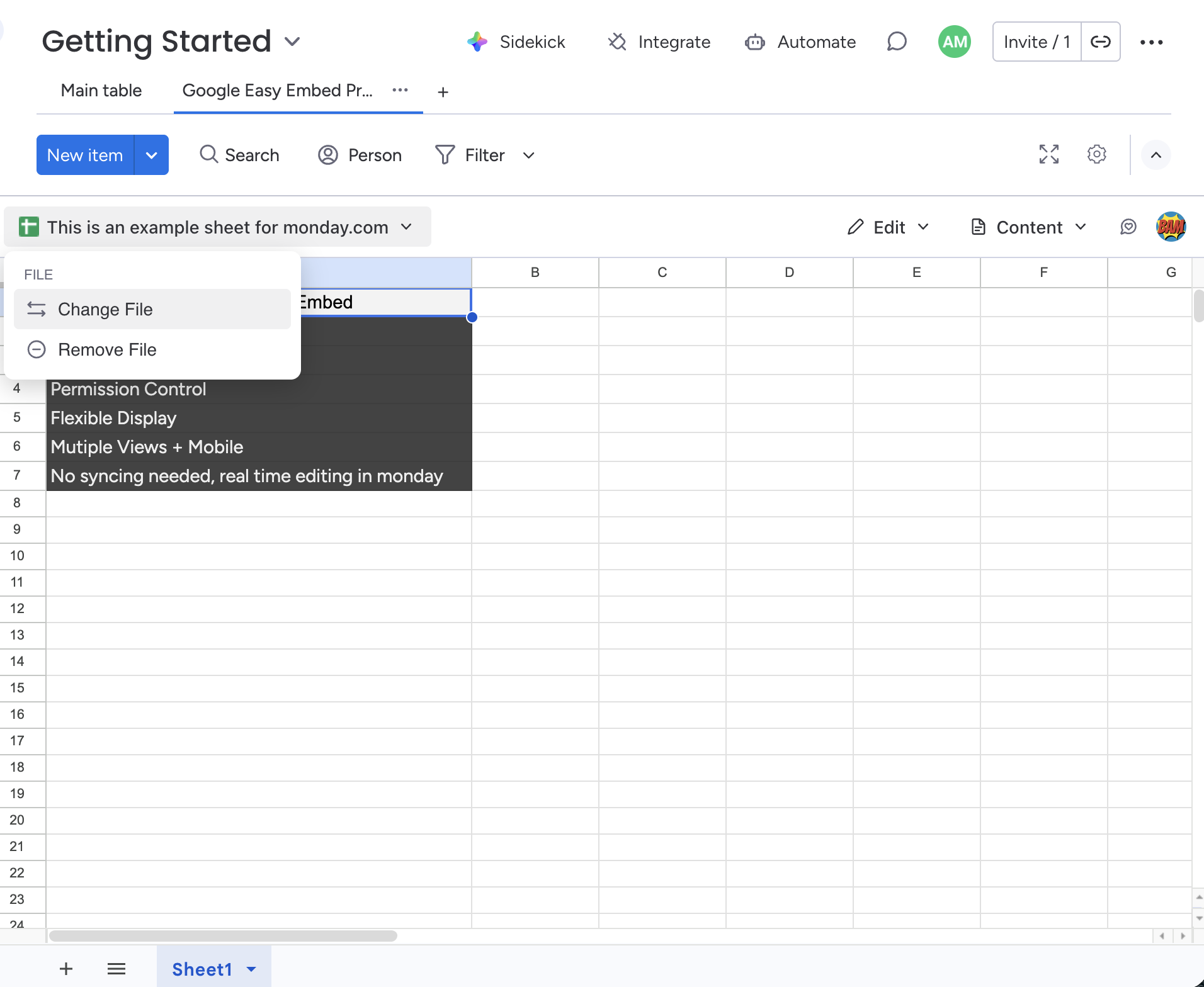
Swap out the embedded file or remove it entirely from the file options menu.
Frequently Asked Questions
What Google file types can I embed in monday.com?
Google Easy Embed supports embedding Google Docs, Google Sheets, Google Slides, Google Forms, and Google Drawings directly into your monday.com board views.
Do my teammates need to connect their own Google accounts?
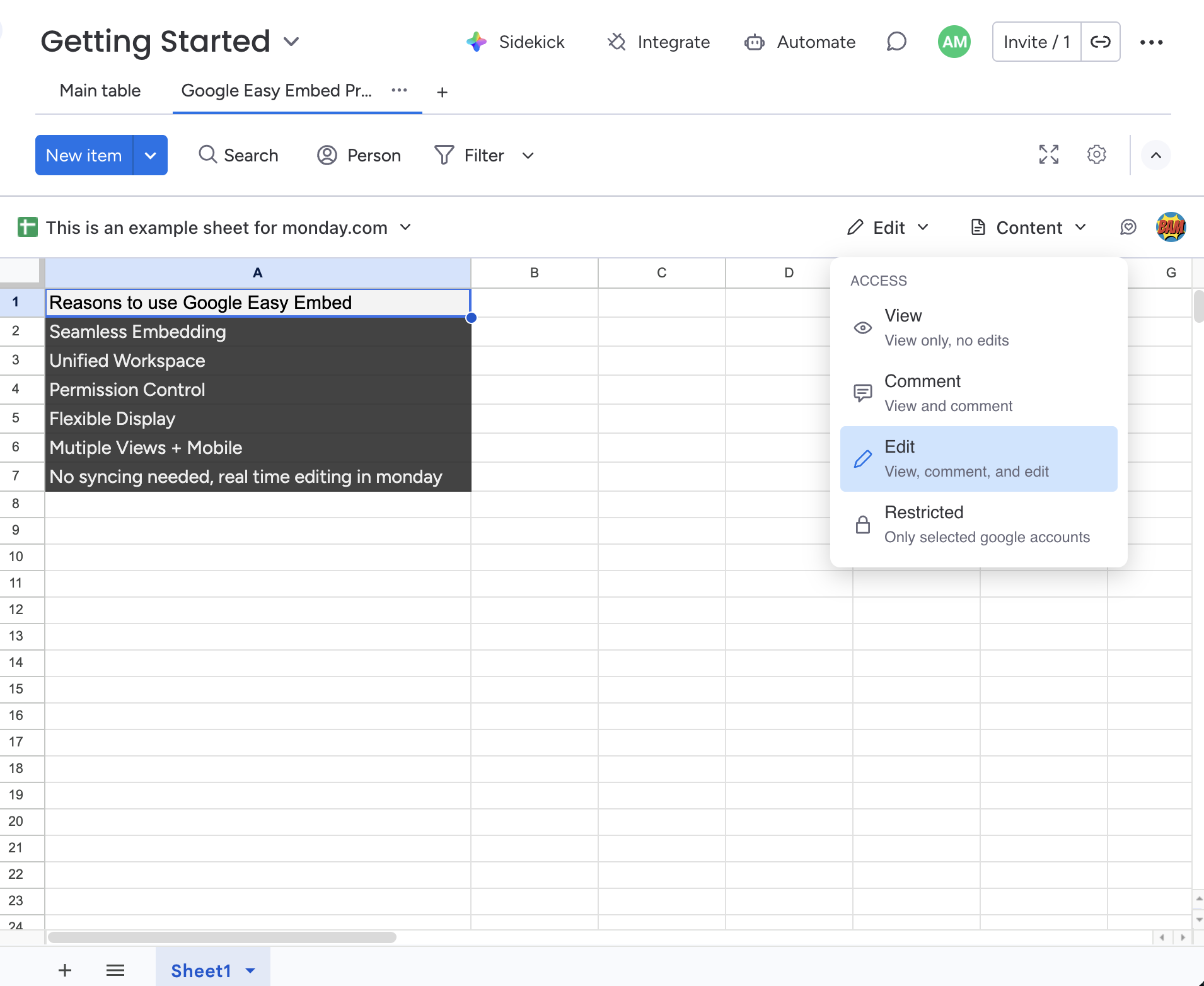
It depends on the access mode. In 'View' mode, teammates see the file through the connector's account. In 'Edit' or 'Comment' modes, each user connects their own Google account to interact with the file directly.
Is Google Easy Embed free?
Yes, Google Easy Embed is completely free to use with no seat limits or feature restrictions. Install it from the monday.com marketplace and start embedding immediately.
How does Google Easy Embed access my files?
The app uses Google OAuth with the drive.file scope, which means it can only access files you explicitly select through the file picker. It never has access to your entire Google Drive.
Can I control how the embedded file is displayed?
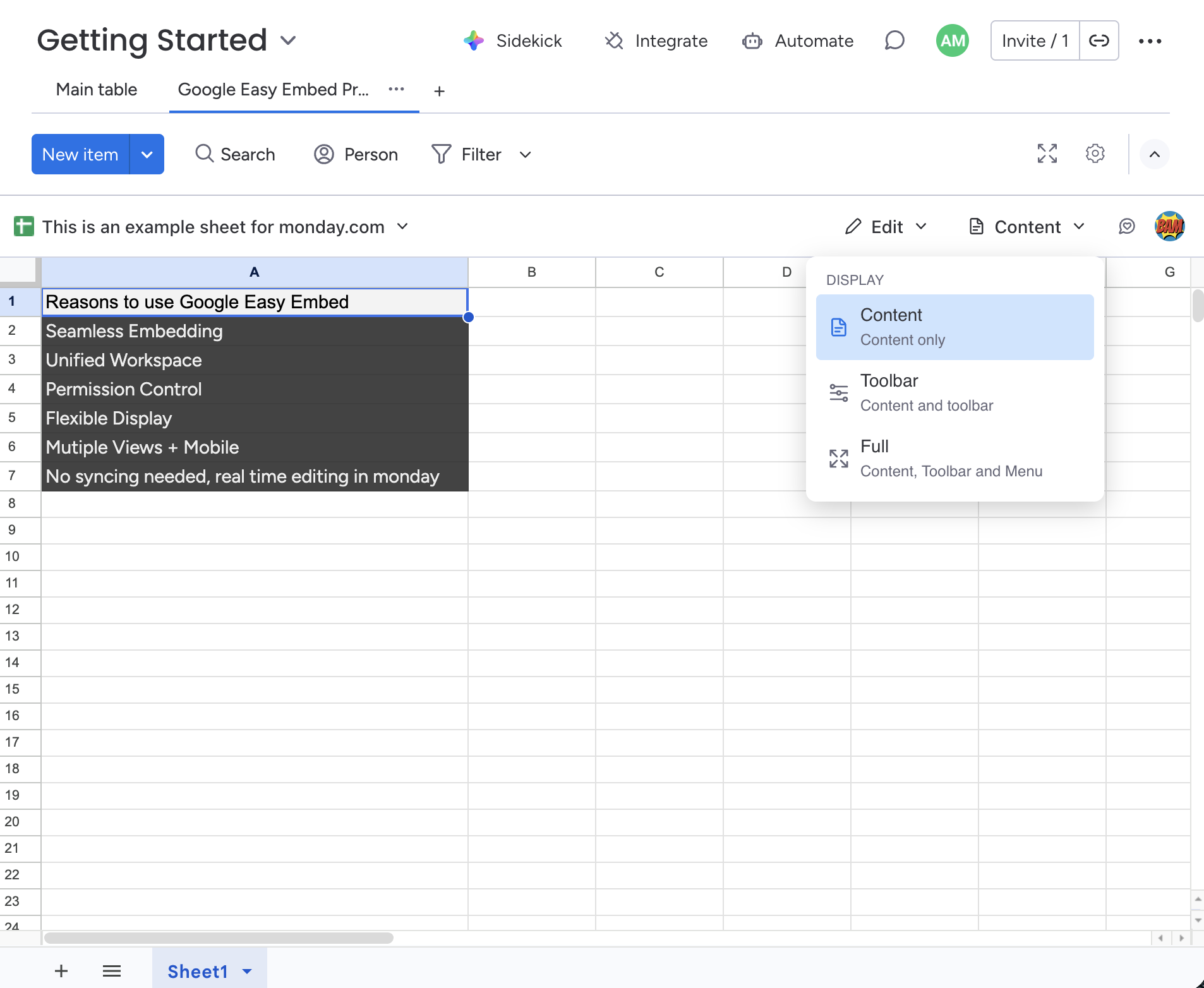
Yes. You can choose between three display modes — Content Only (clean document view), Toolbar (shows the Google editing toolbar), and Full (complete Google interface) — plus three access modes: View, Comment, and Edit.
Can I embed a Google Drive folder, or only individual files?
Individual files only. Google Easy Embed uses Google's Drive file picker, which returns a single Doc, Sheet, Slide, Form, or Drawing. To make a folder's worth of files available on a board, embed the most relevant one and link to the folder from inside that document, or add multiple Easy Embed views to the same board.
Does the embedded file stay in sync if someone edits the original?
Yes. Easy Embed shows the live Google file, not a snapshot. Any edit made in Google Docs, Sheets, or Slides — by your team or by you in another tab — is reflected the next time the view is loaded or refreshed.
Will an external guest on my monday.com board see the embedded file?
It depends on whether the guest has access to the underlying Google file. Easy Embed itself can render for anyone with the board view open, but Google enforces the file's own sharing permissions when the embed loads. If the guest doesn't have Google access, they'll see Google's standard 'request access' prompt.
Can I restrict who can edit vs. view the embedded file?
Yes — that's what the three access modes (View, Comment, Edit) are for. Set the view to View if you want the team to read only, Comment if they should be able to leave comments, and Edit if they should be able to change the file. The mode is configured per view, so different boards can have different access levels for the same file.