Easy Invoice runs as a full Custom Object view inside the monday.com mobile app — so you can create quotes and invoices, preview them, and send a share link from wherever you happen to be standing.
You need the monday.com mobile app. Easy Invoice doesn’t have its own app — it runs inside monday.com’s iOS and Android app, the same way it runs inside monday.com on desktop.
What the mobile dashboard shows
The dashboard is the first thing you see when you open Easy Invoice on your phone. It collapses your whole invoicing workspace into a single scroll.
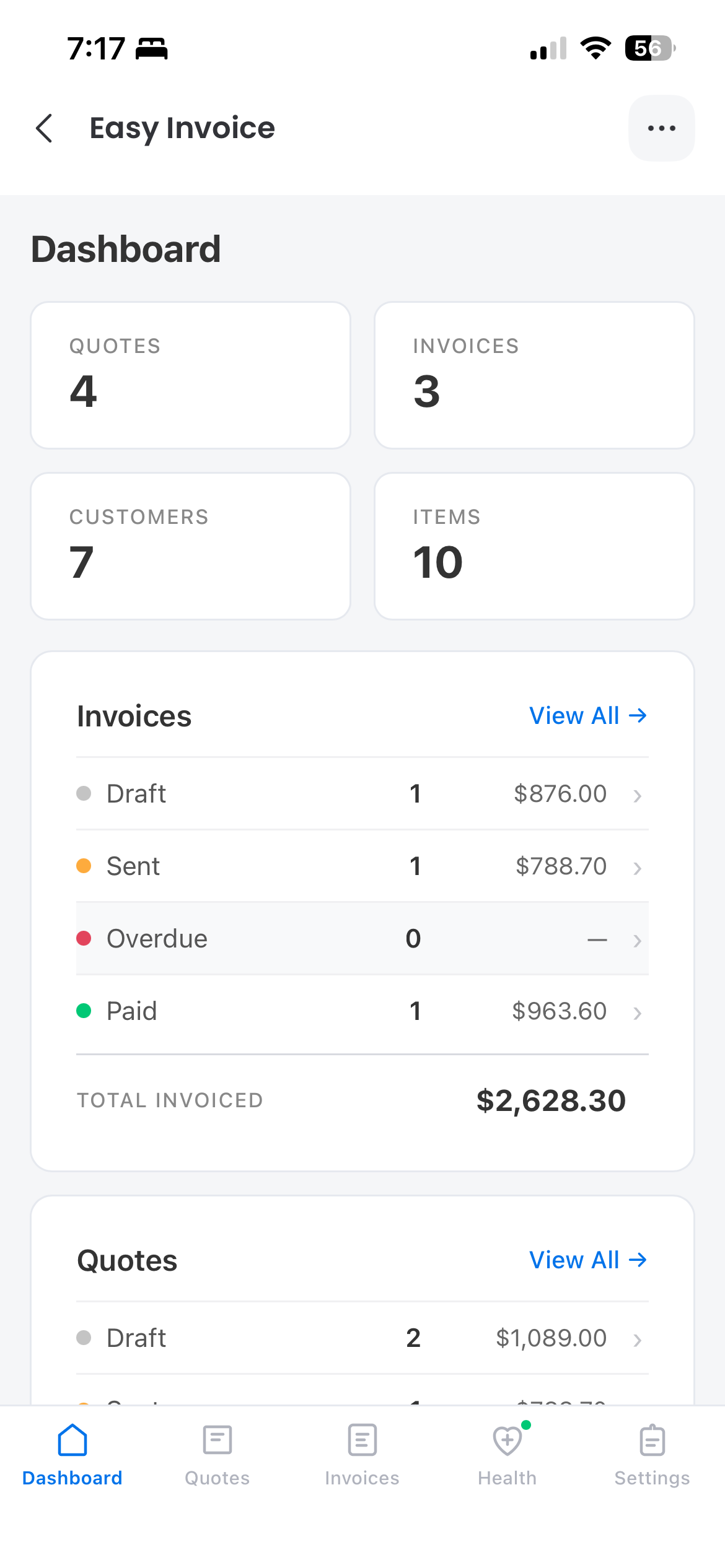
- Counters at the top — current totals for Quotes, Invoices, Customers, and Items.
- Invoices rollup — Draft, Sent, Overdue, and Paid totals with a single Total Invoiced figure.
- Quotes rollup — Draft, Sent, Approved, and Declined.
Tap View All on either rollup to drill into the matching board.
Creating an invoice on mobile
- Tap Invoices on the bottom tab bar (or View All in the Invoices card on the dashboard).
- Tap New Invoice. Easy Invoice creates a draft with the next number in your sequence (for example
INV-0001). - Tap BILL TO and start typing — the search reaches into your Customers board. Tap a result and the address, email, and phone all populate.
- Tap a line-item row to pick a product from your Items board, or type a one-off line. Adjust Rate, Qty, and the per-line Tax toggle.
- Adjust Terms (Net 7, Net 14, Net 30, Custom) — the Due Date updates automatically.
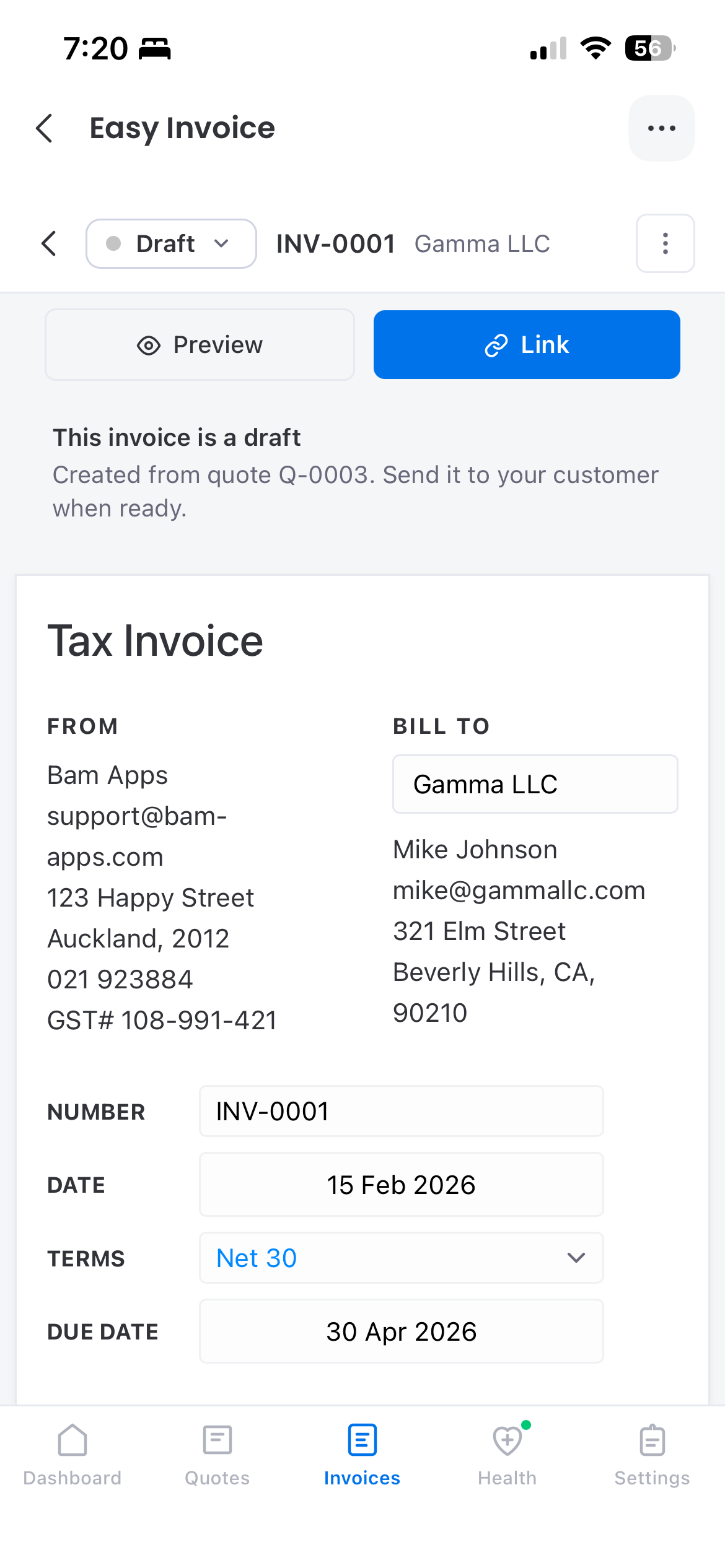
The editor is the same one you use on desktop — tap the toolbar’s Preview button at any time to see the document as your customer will, then Link to publish a shareable URL.
Sharing from your phone
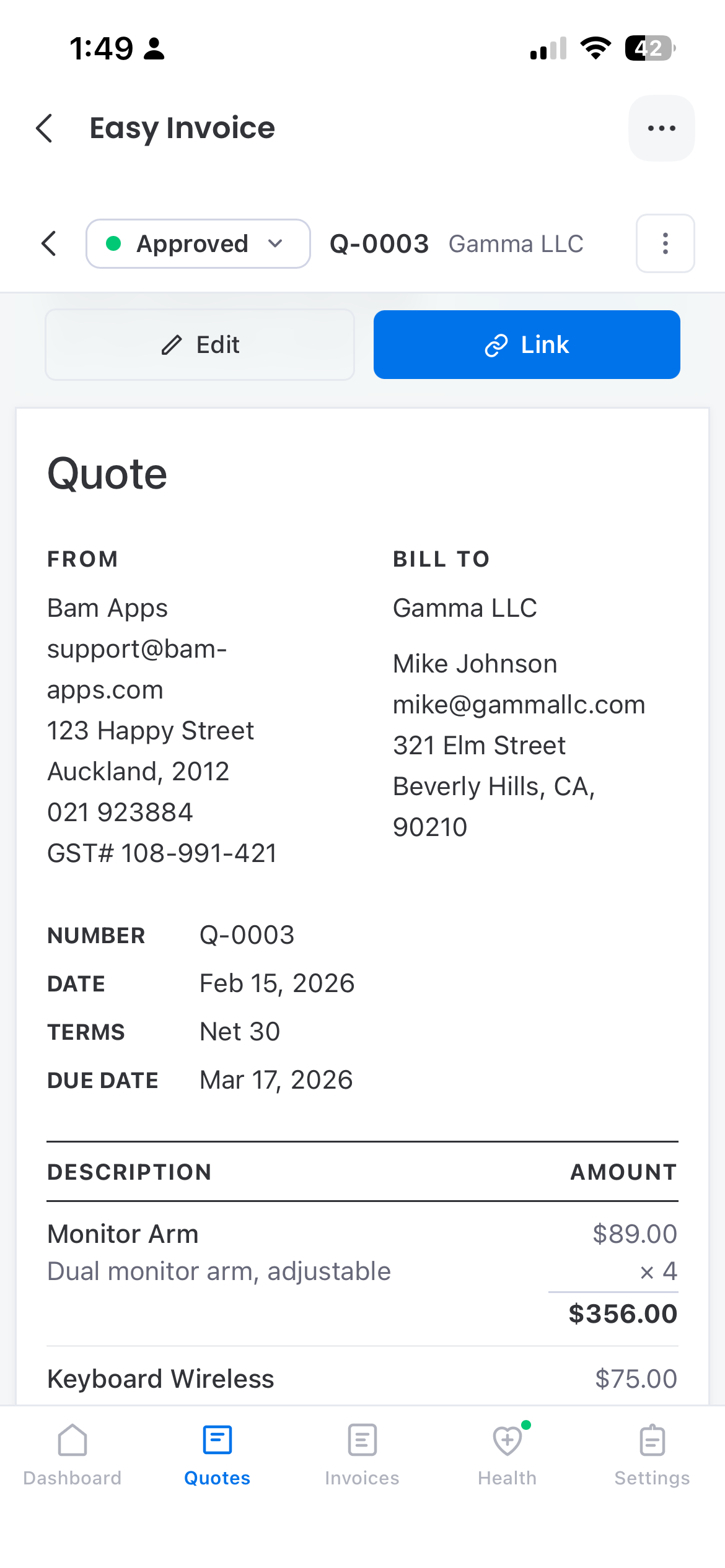
After tapping Link, the share popover gives you a Copy button. From there it’s one tap into iMessage, WhatsApp, email, or whichever app your client prefers. The link is the same public URL that’s generated on desktop, so you don’t have to worry about an inconsistent experience on the client side.
What works the same as desktop
- The same Quotes & Invoices, Customers, and Items boards back both views — there’s no separate mobile data set.
- Tax rate, tax label (GST / VAT / Tax), currency, and your branding all come from the same Settings page you set up on desktop.
- The numbering sequence is shared — invoice #0042 on desktop is still #0042 if you open it on mobile.
What’s different on mobile
- No PDF download. Mobile uses the Link flow rather than a local PDF download, so you don’t end up with files cluttering your phone. Your customer can download the PDF themselves from the public link.
- Tighter layout. Multi-column desktop sections (e.g. FROM / BILL TO side-by-side) stack vertically so they’re readable without zooming.