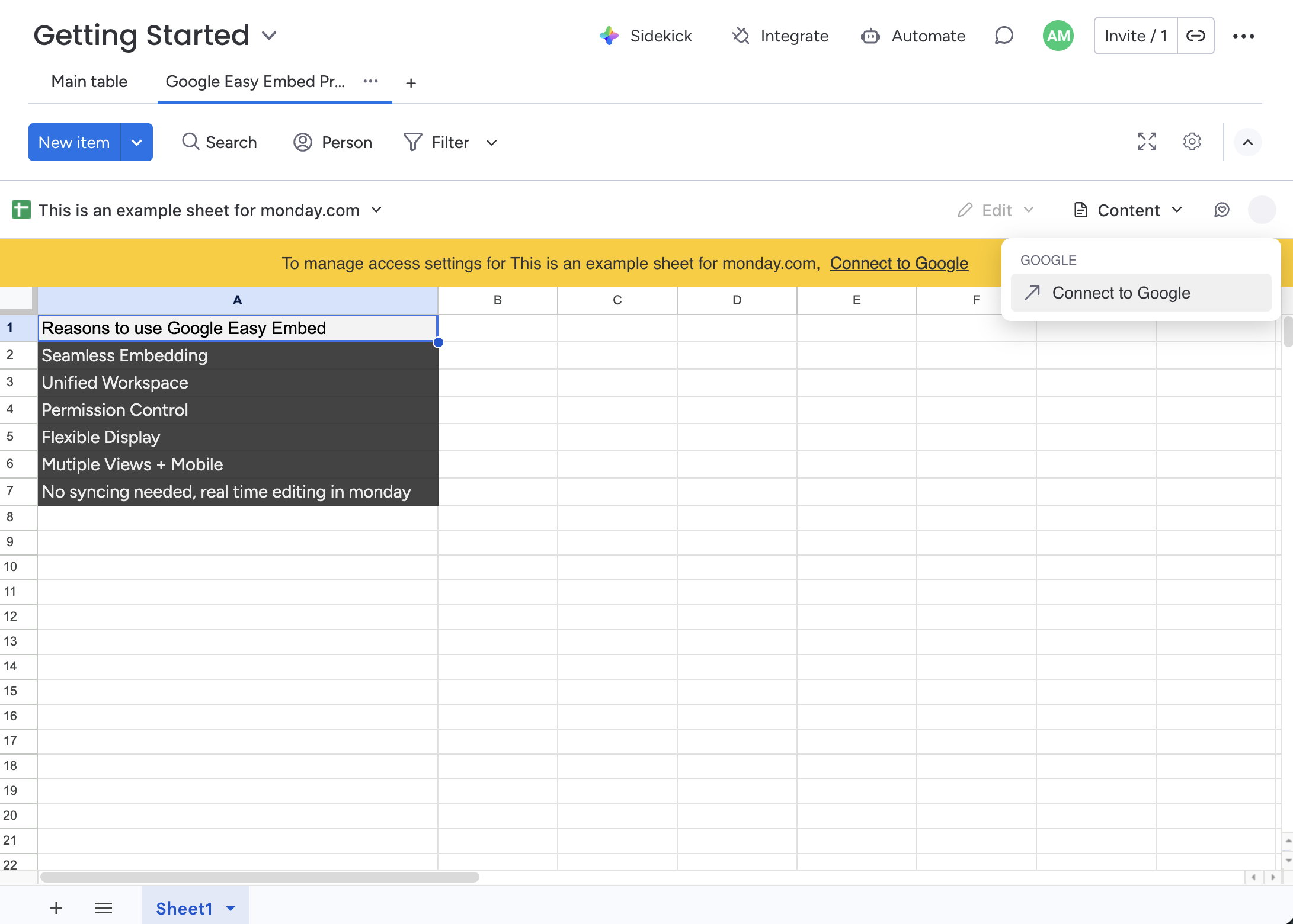
Before embedding a file, you need to connect your Google account. This authorization lets Google Easy Embed Pro access the specific Google Drive files you select and manage sharing permissions on your behalf.
How to Connect
-
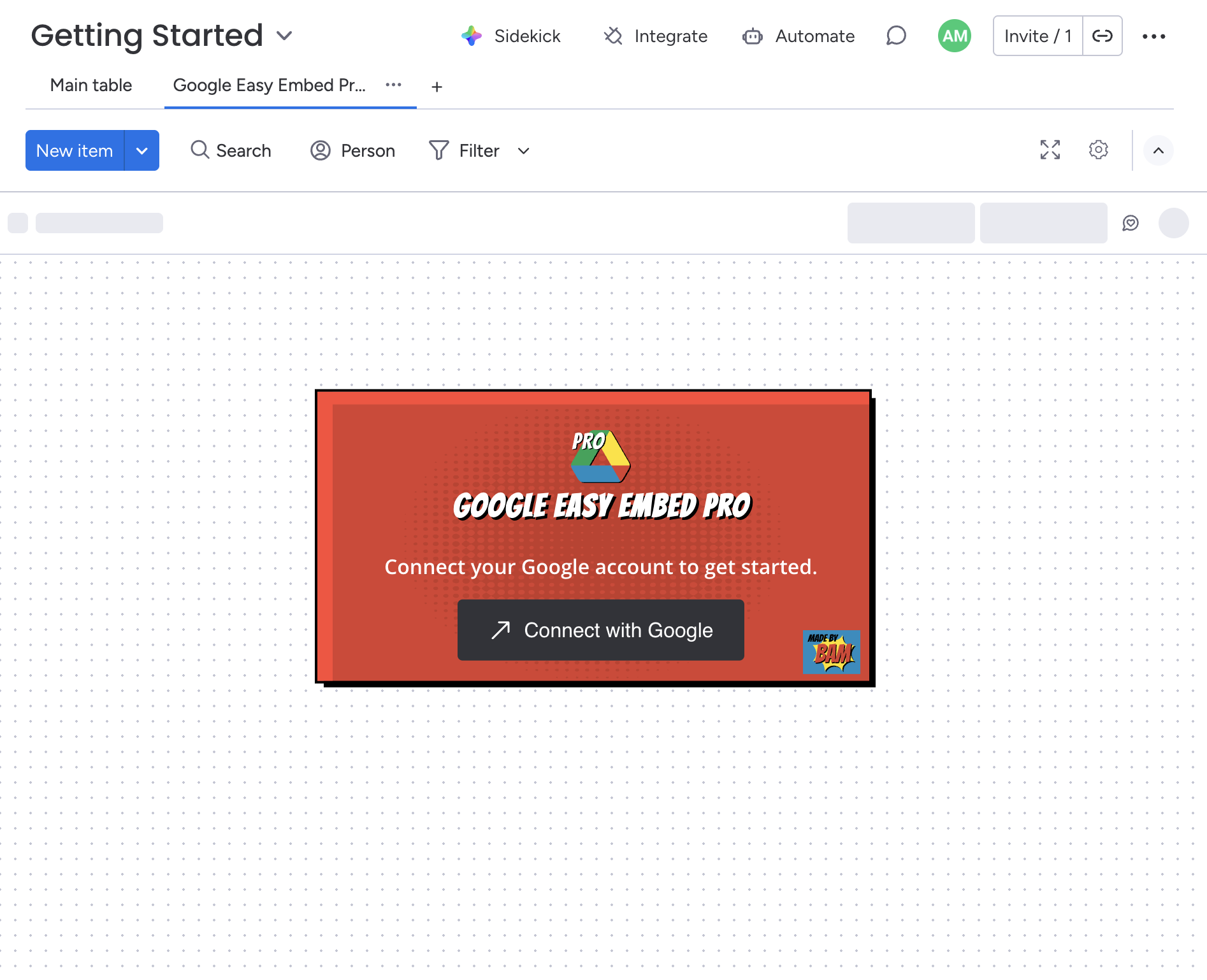
On the welcome screen, click the Connect with Google button.
-
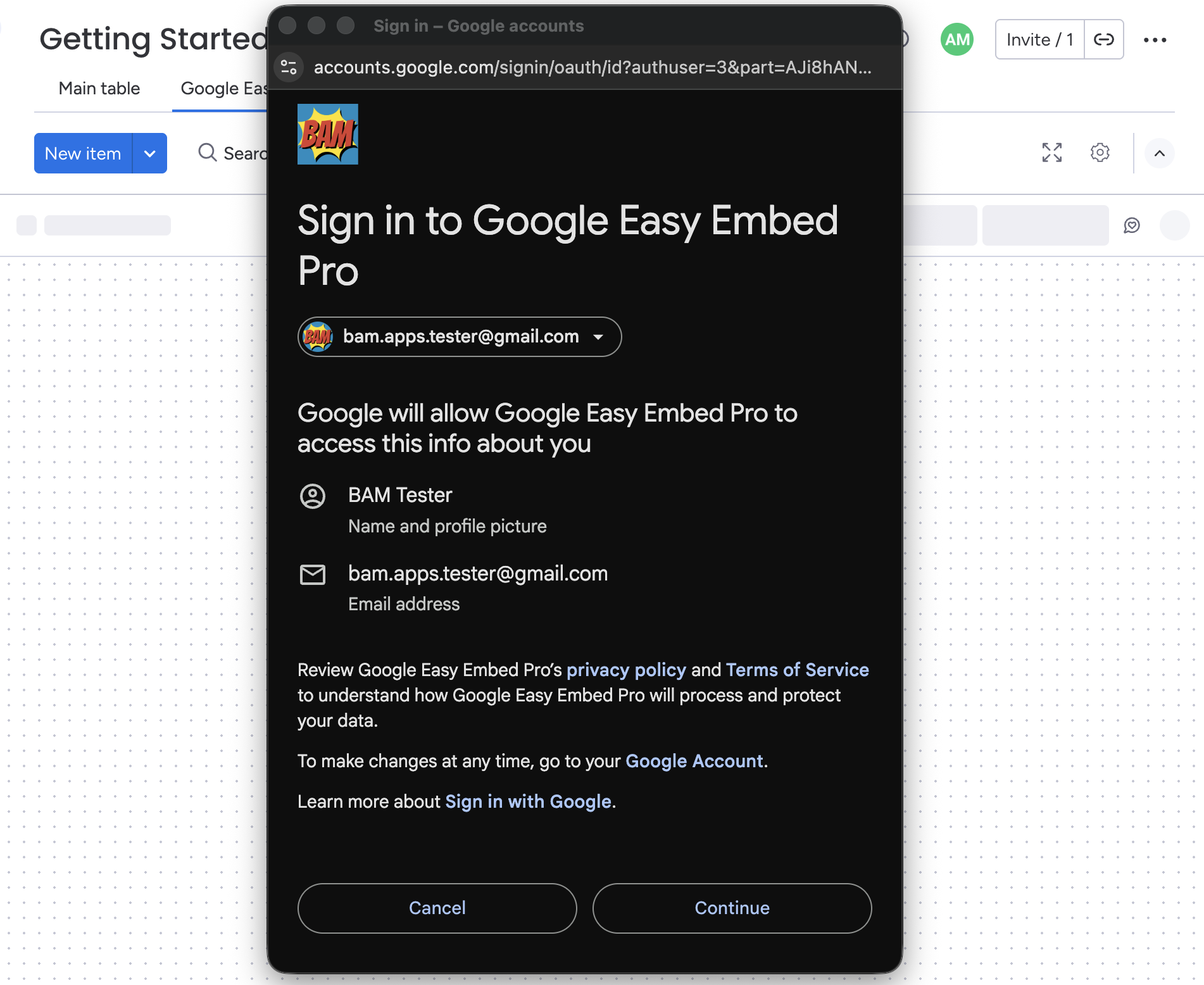
A popup window opens asking you to sign in to your Google account.
-
Select the Google account you’d like to use. You’ll be asked to grant two sets of permissions:
Profile access — lets the app display your name and profile picture.
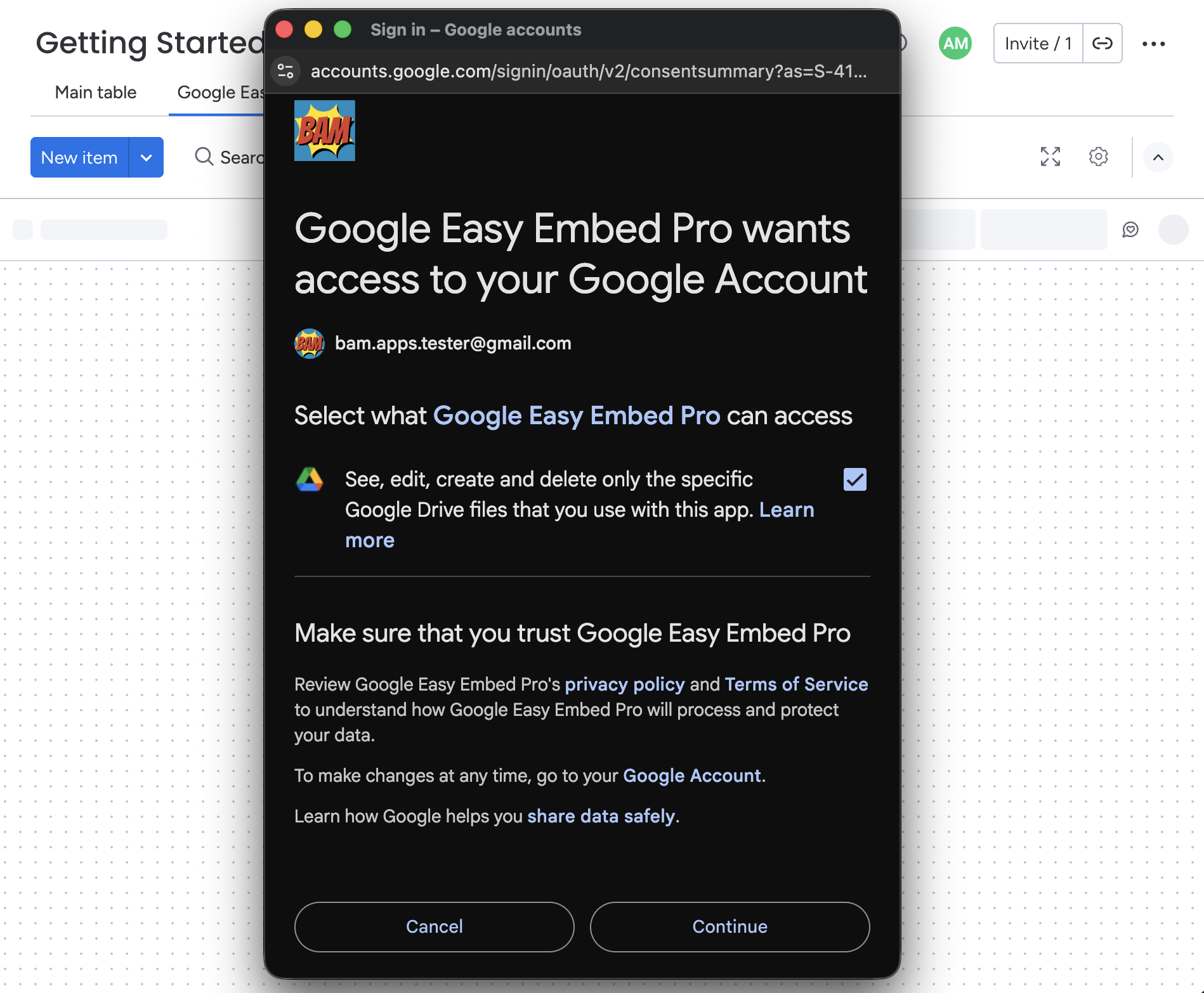
Google Drive access — lets the app read your files and manage sharing permissions.
-
Once authorized, the popup closes automatically and you’re connected.
What Permissions Are Granted?
| Permission | What It Does |
|---|---|
| Profile | Displays your name and profile picture in the toolbar. |
| Google Drive (read) | Lets you browse and select files from your Drive. |
| Google Drive (sharing) | Lets the app update file sharing permissions when you change the access mode. |
Google Easy Embed Pro only accesses files you explicitly select. It does not read or modify other files in your Drive.
Disconnecting
To disconnect your Google account:
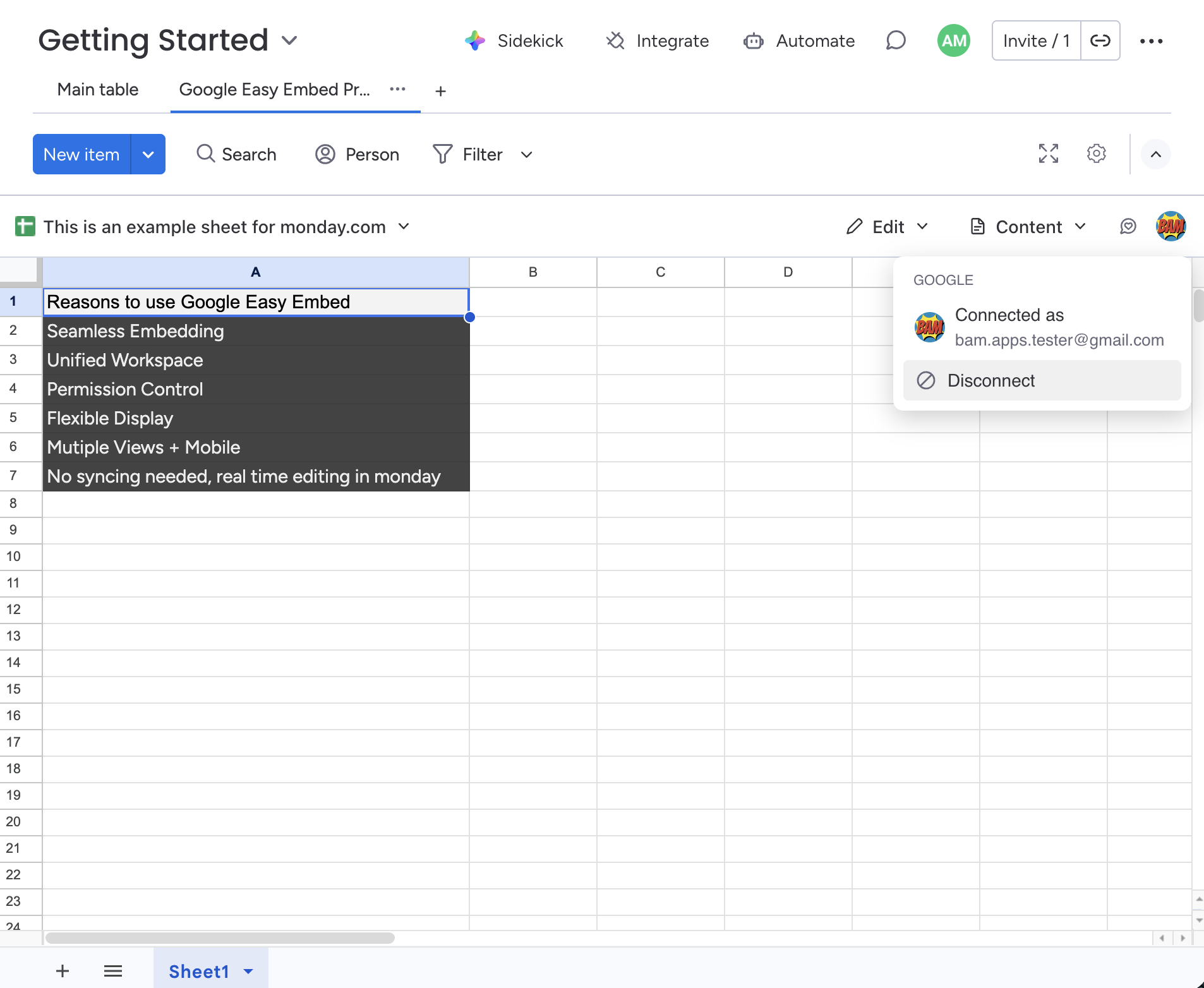
- Click your profile avatar in the top-right corner of the toolbar.
- Select Disconnect.
Your embedded file and view settings are preserved, but you won’t be able to change settings until you reconnect.
Reconnecting
If your session expires or you’ve disconnected, click your profile avatar in the toolbar and select Connect to Google to reconnect.