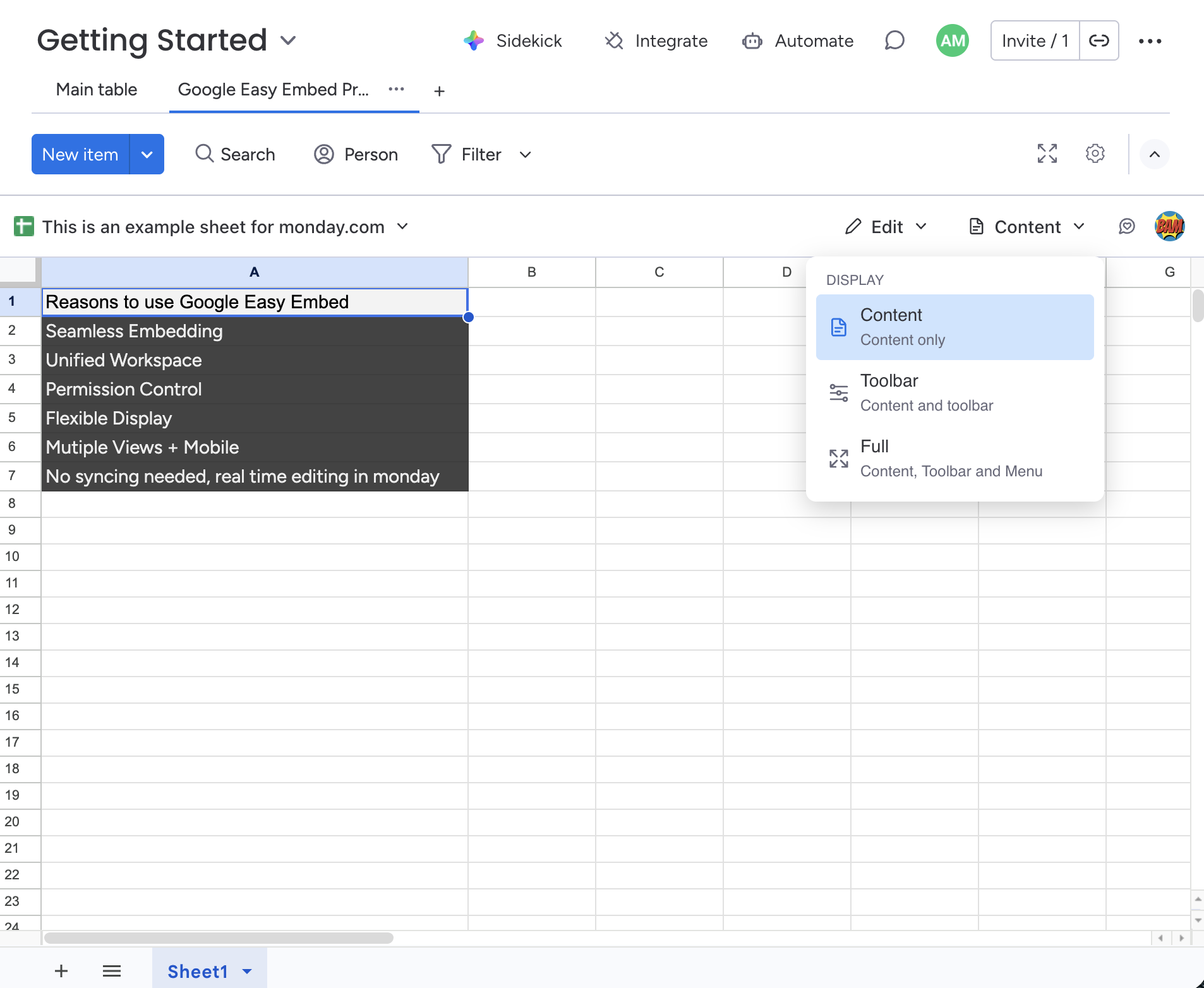
Get up and running in a few minutes. This guide walks you through adding Google Easy Embed Pro to your monday.com board, connecting your Google account, and embedding a file.
Step 1 — Add Google Easy Embed Pro to Your Board
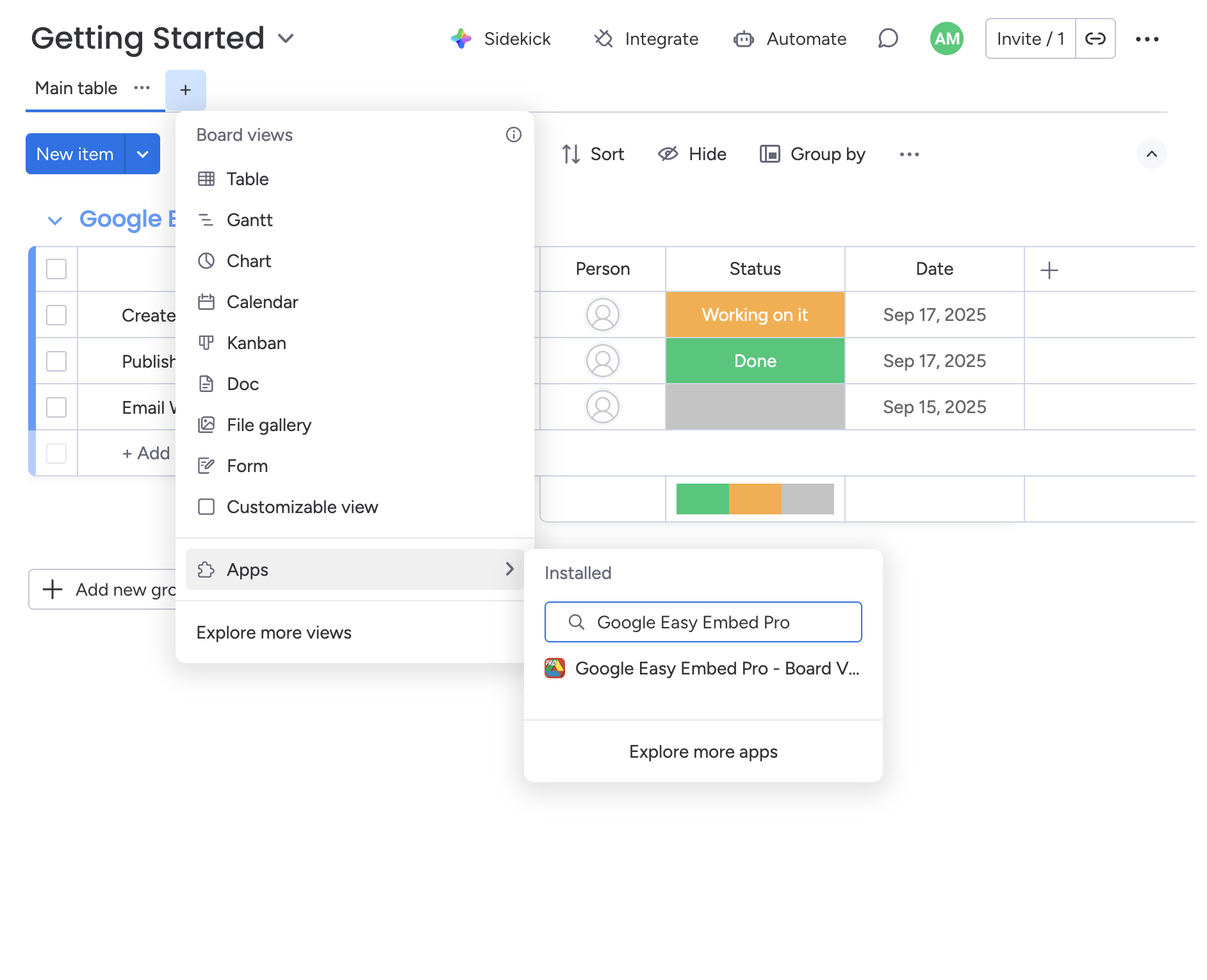
- Open the monday.com board you want to embed a Google file into
- Click the + button at the top of your board, next to your existing views
- Select Apps from the view options
- Search for Google Easy Embed Pro and select it
The app opens as a new board view displaying the welcome screen.
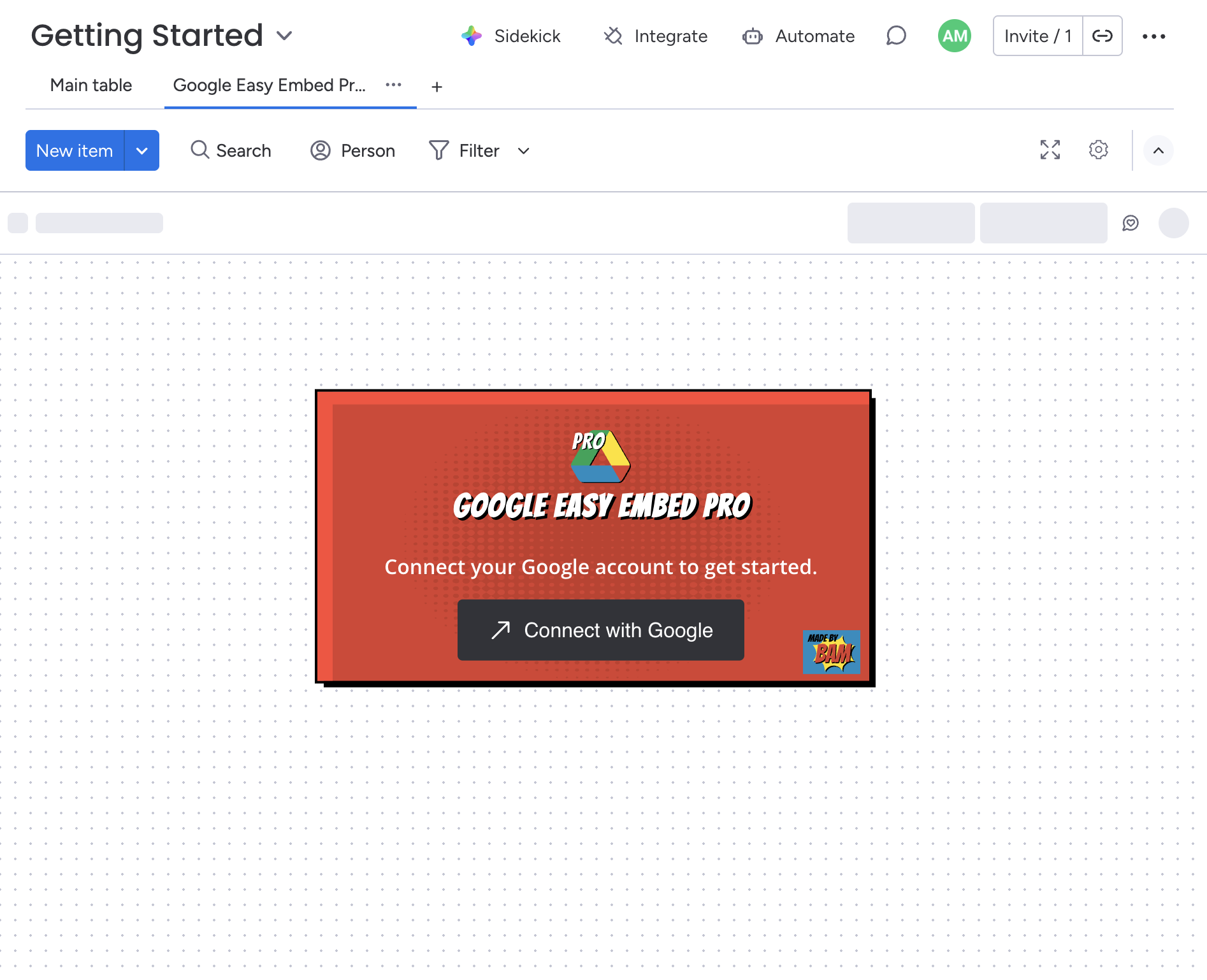
Step 2 — Connect with Google
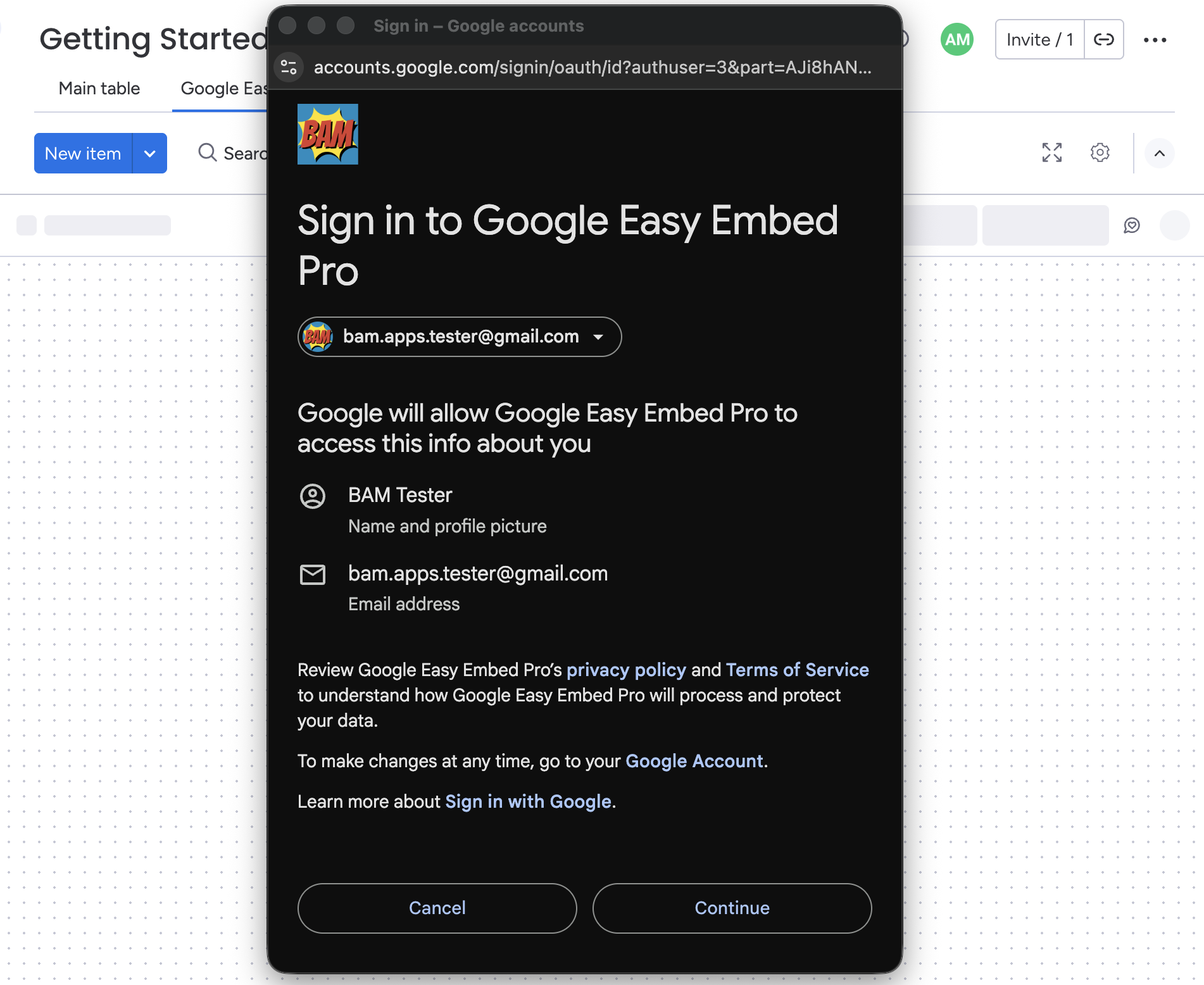
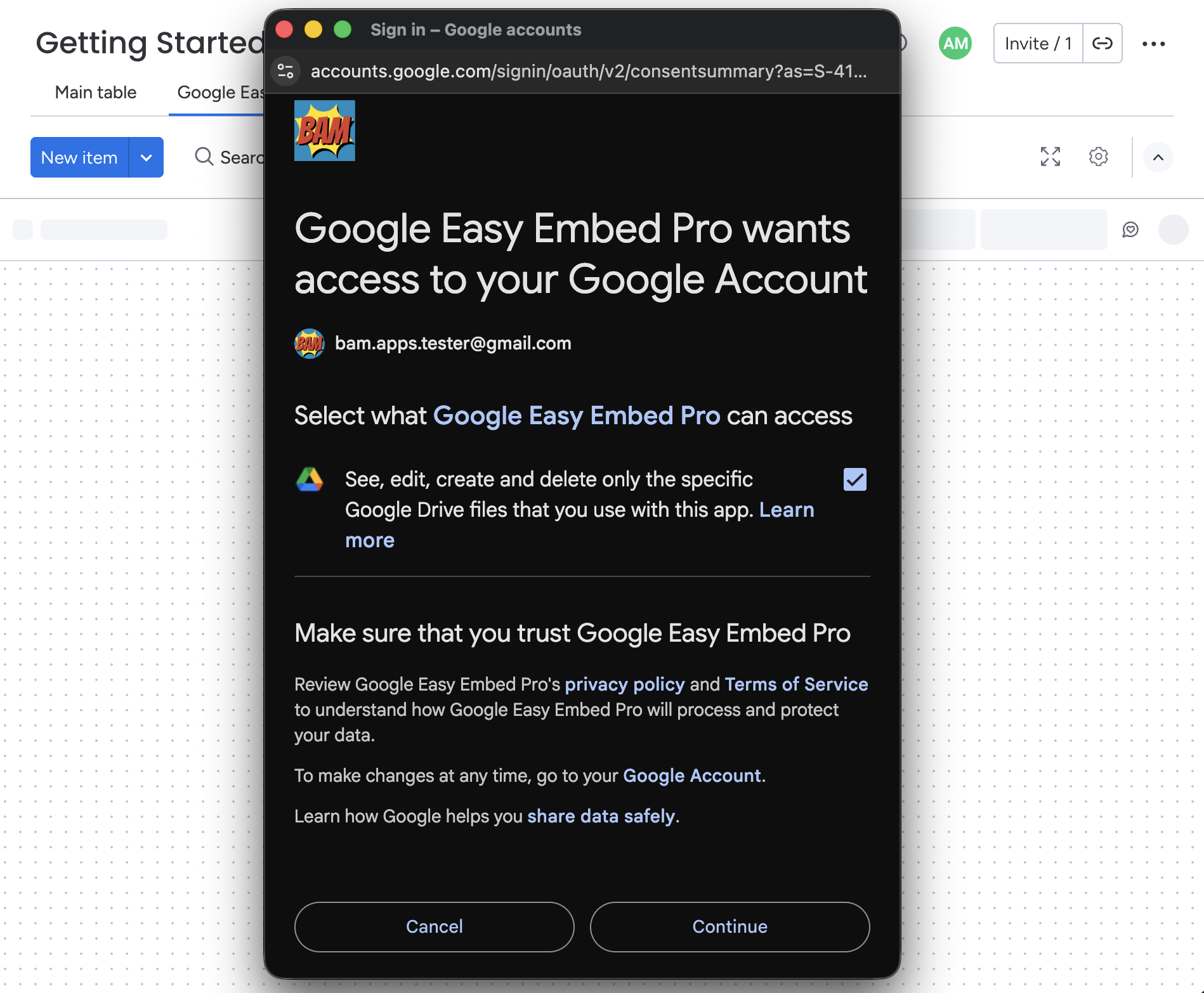
Click the Connect with Google button on the welcome screen. A popup appears where you sign in and grant permission for profile and Drive access. Make sure you check the box when approving Drive access.
Important: You are only granting access to the files you choose to embed. This does not give the app access to all of your Drive files.
Step 3 — Select a File to Embed
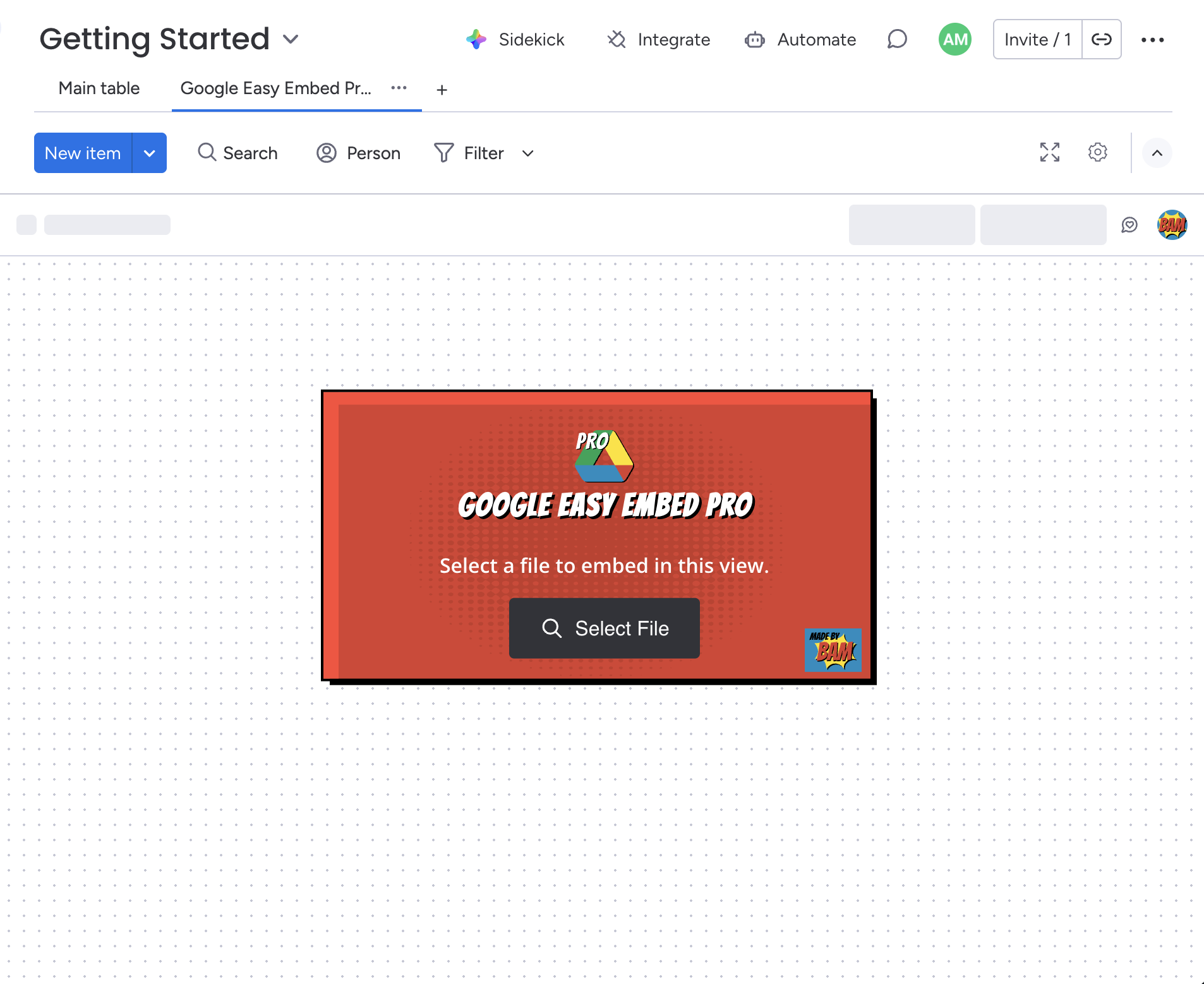
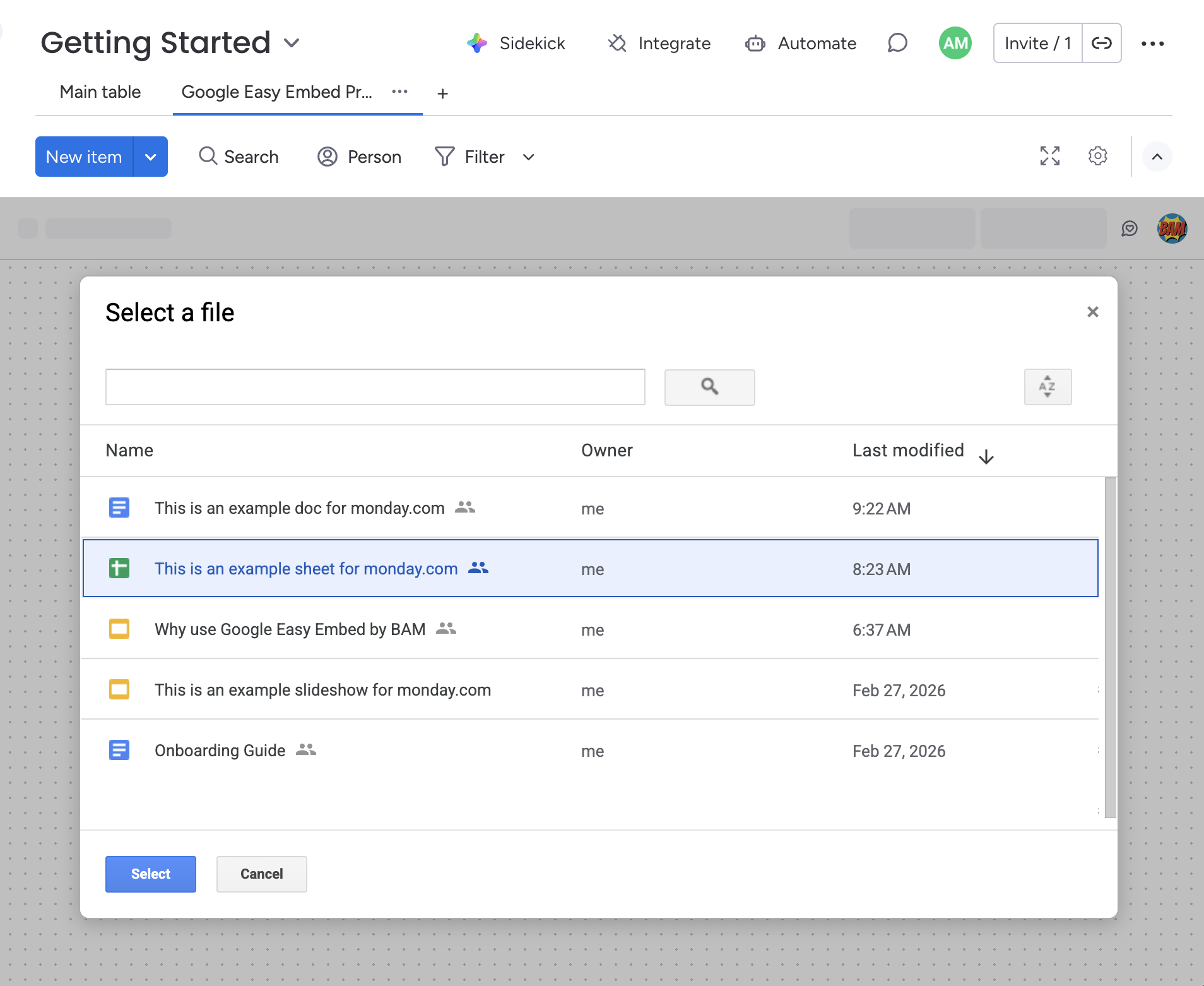
Once connected, click Select File to open the Google file picker. Browse or search for a Google Doc, Sheet, Slide, or Form and select it to embed.
Optional Settings
Once a file is embedded, customize access and display from the toolbar.
Access Mode
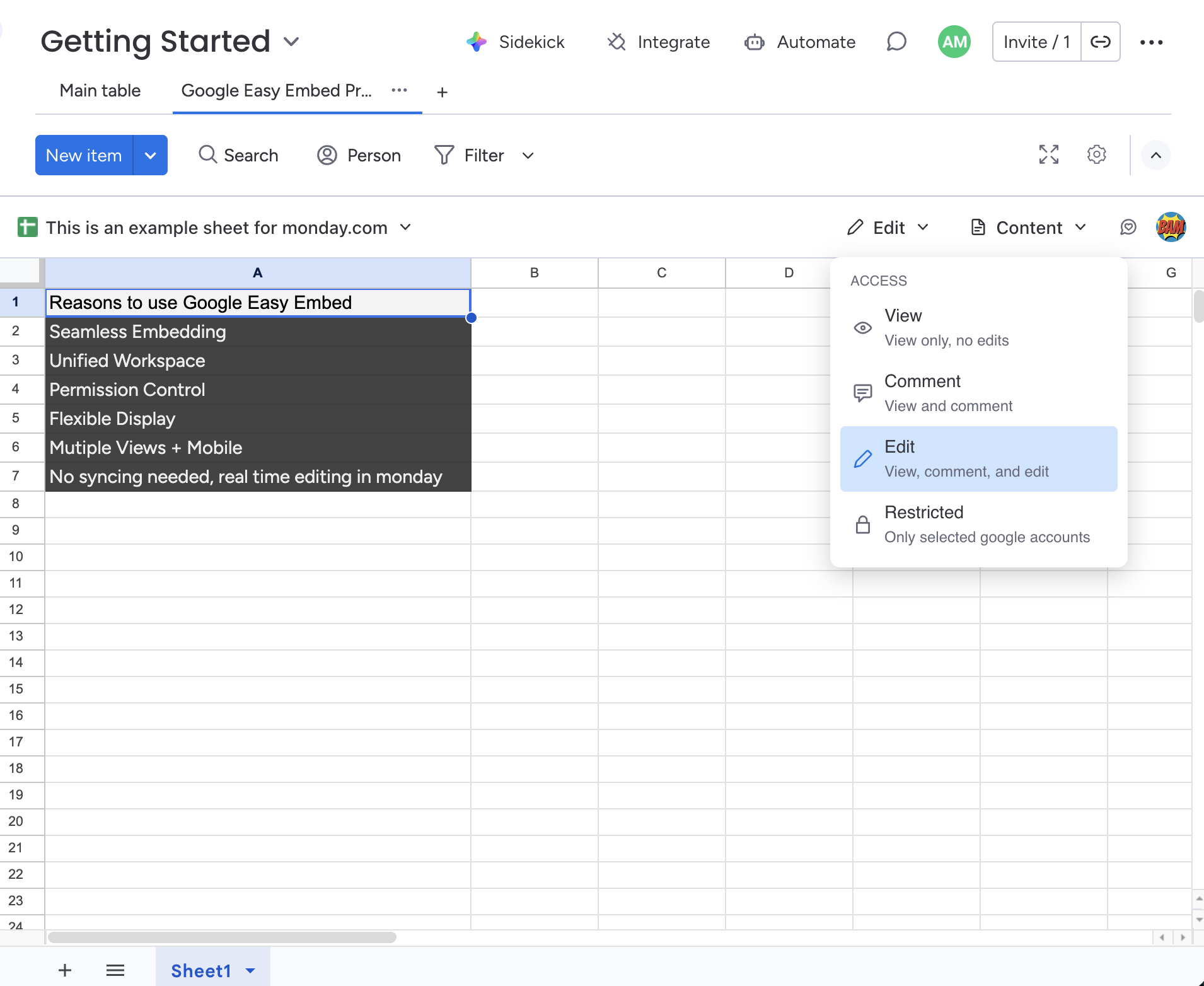
The access mode controls what your team can do with the embedded file — view, comment, edit, or restrict access entirely. Click the Access dropdown in the toolbar to change it.
Display Mode
The display mode controls how much of the Google interface is visible — from a clean content-only view to the full Google UI. Click the Display dropdown in the toolbar to change it.