The toolbar appears at the top of the embedded view and gives you quick access to all settings. It is only visible to the owner — the person who first configured the embed.
The toolbar contains five main components:
1. File Options
Change or remove the embedded file from the current view.
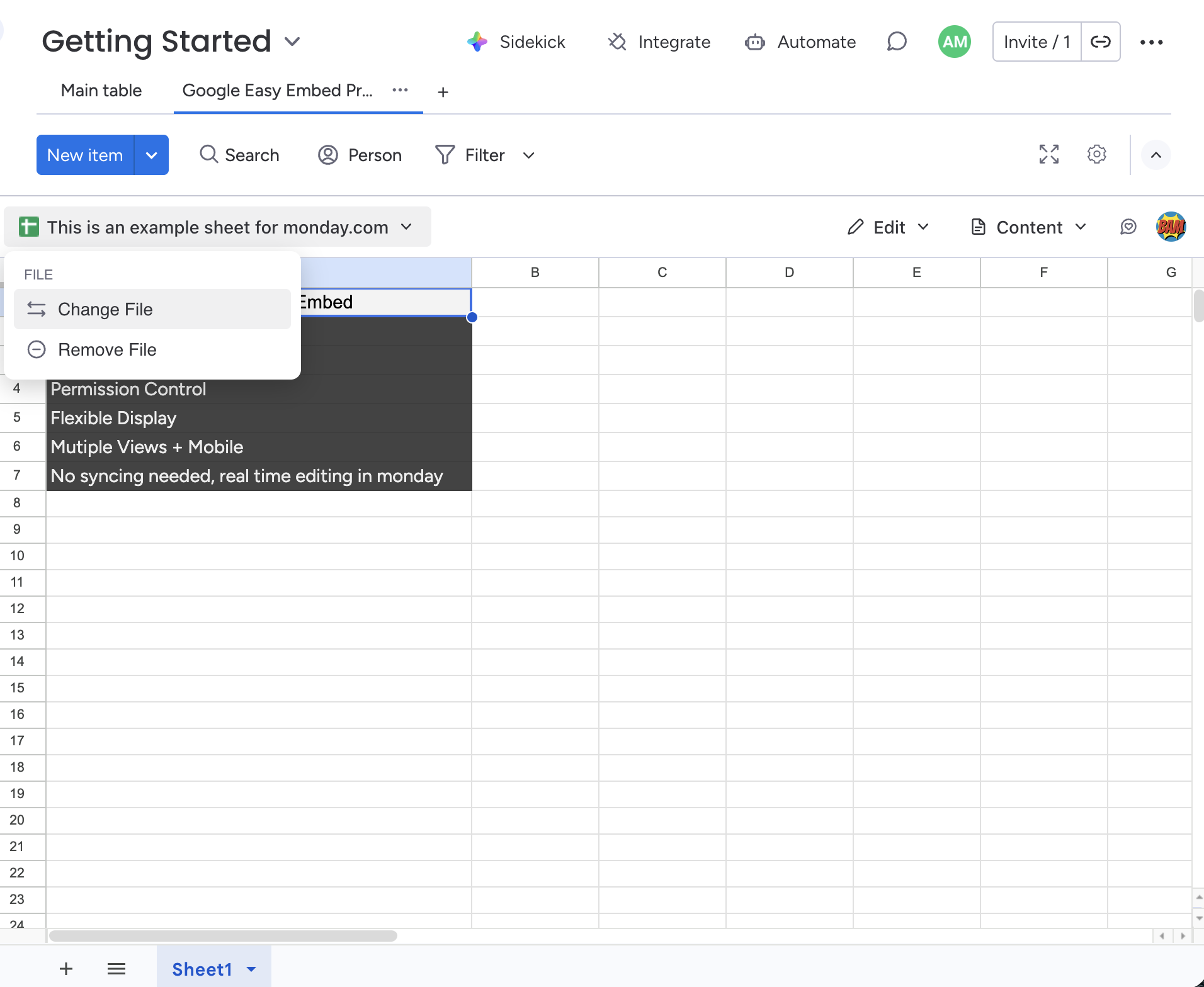
See File Options for details.
2. Access Mode
Control what your team members can do with the embedded file — view, comment, edit, or restrict access entirely.
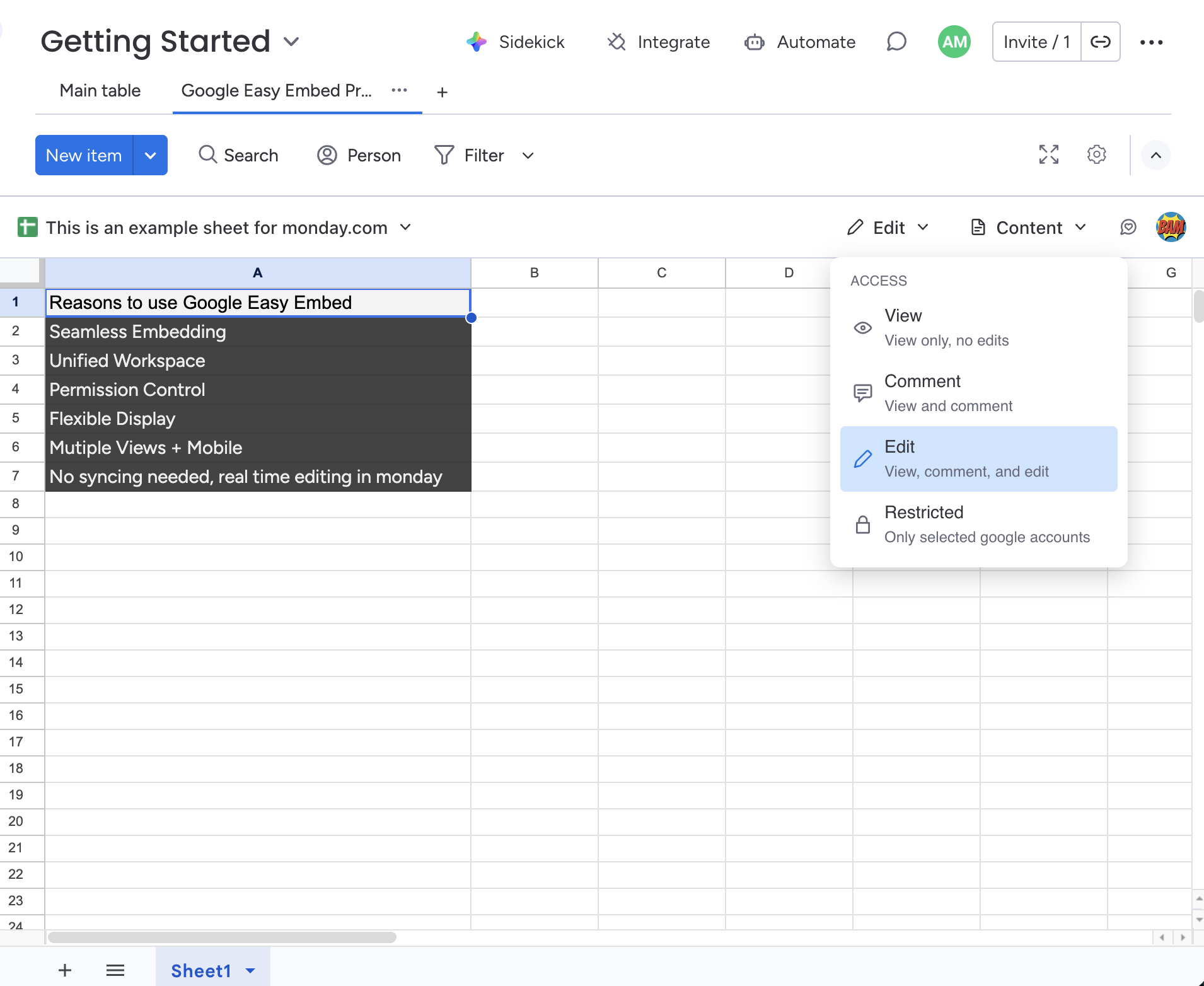
See Access Modes for details.
3. Display Mode
Control how much of the Google interface is shown in the embed — from a clean content-only view to the full Google UI.
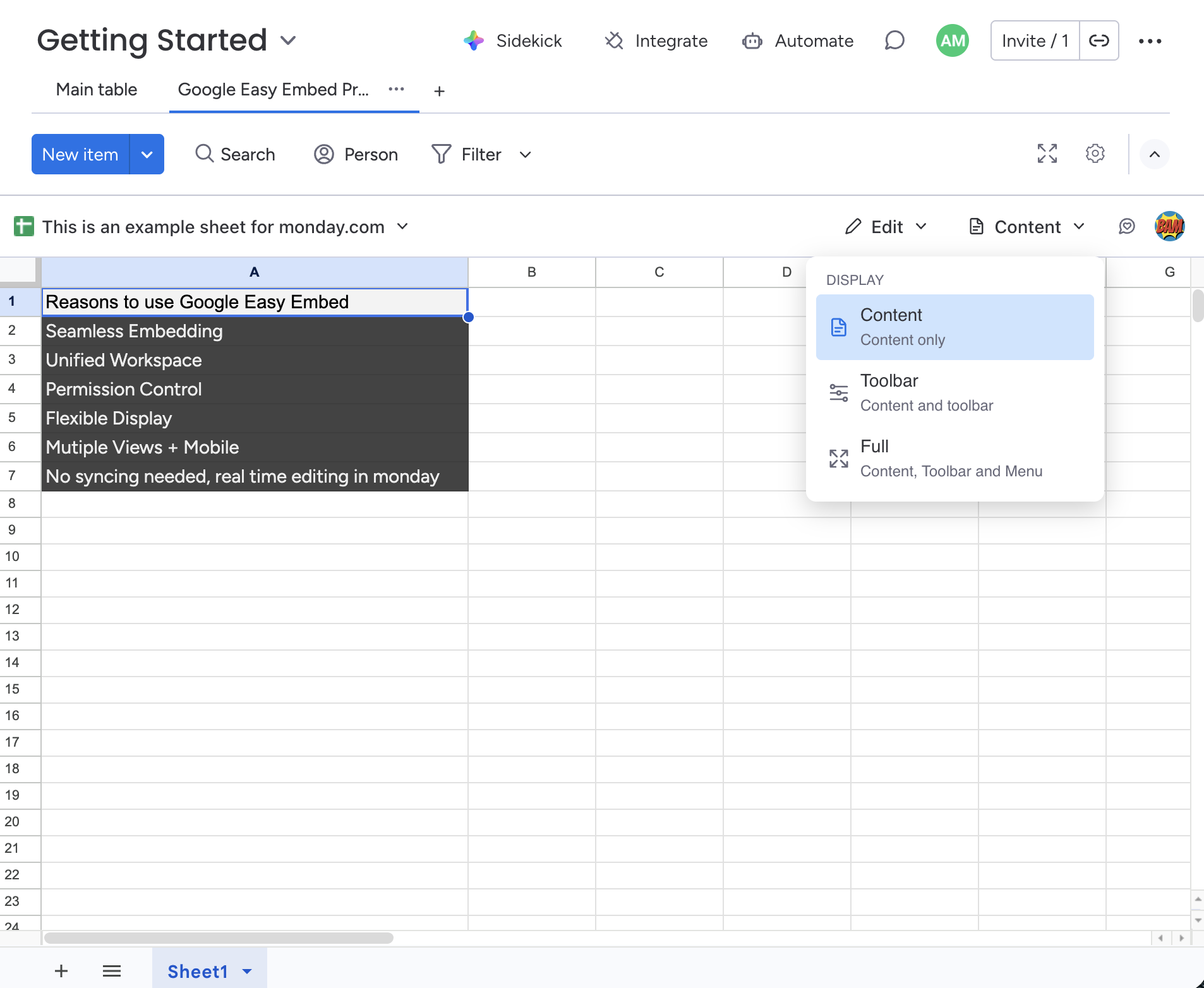
See Display Modes for details.
4. Contact Support
Click the feedback icon to open the support widget for help with the app.
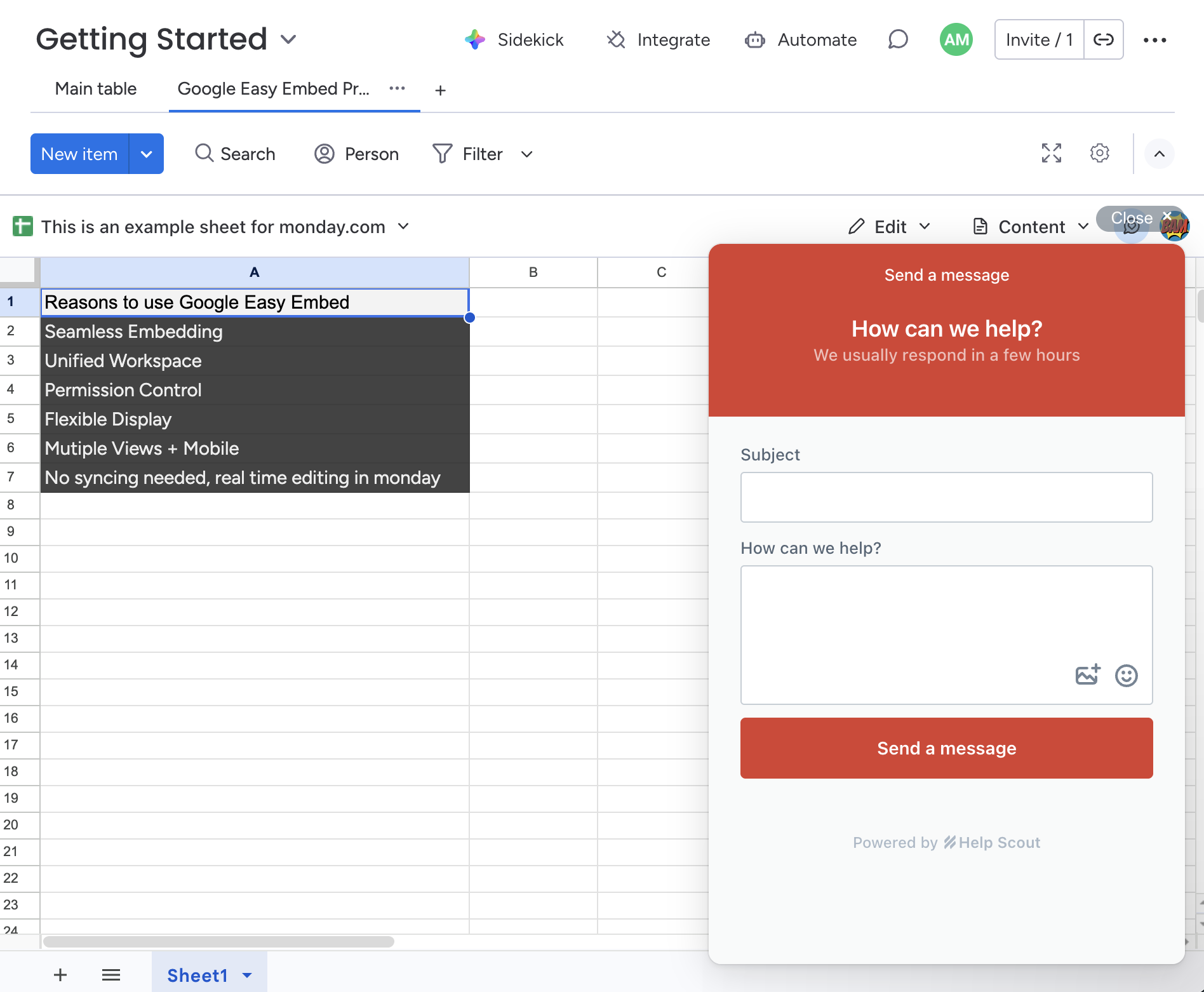
See Support for details.
5. Google Account
View your connected Google account or disconnect. Click your profile avatar in the top-right corner of the toolbar to open the account menu.
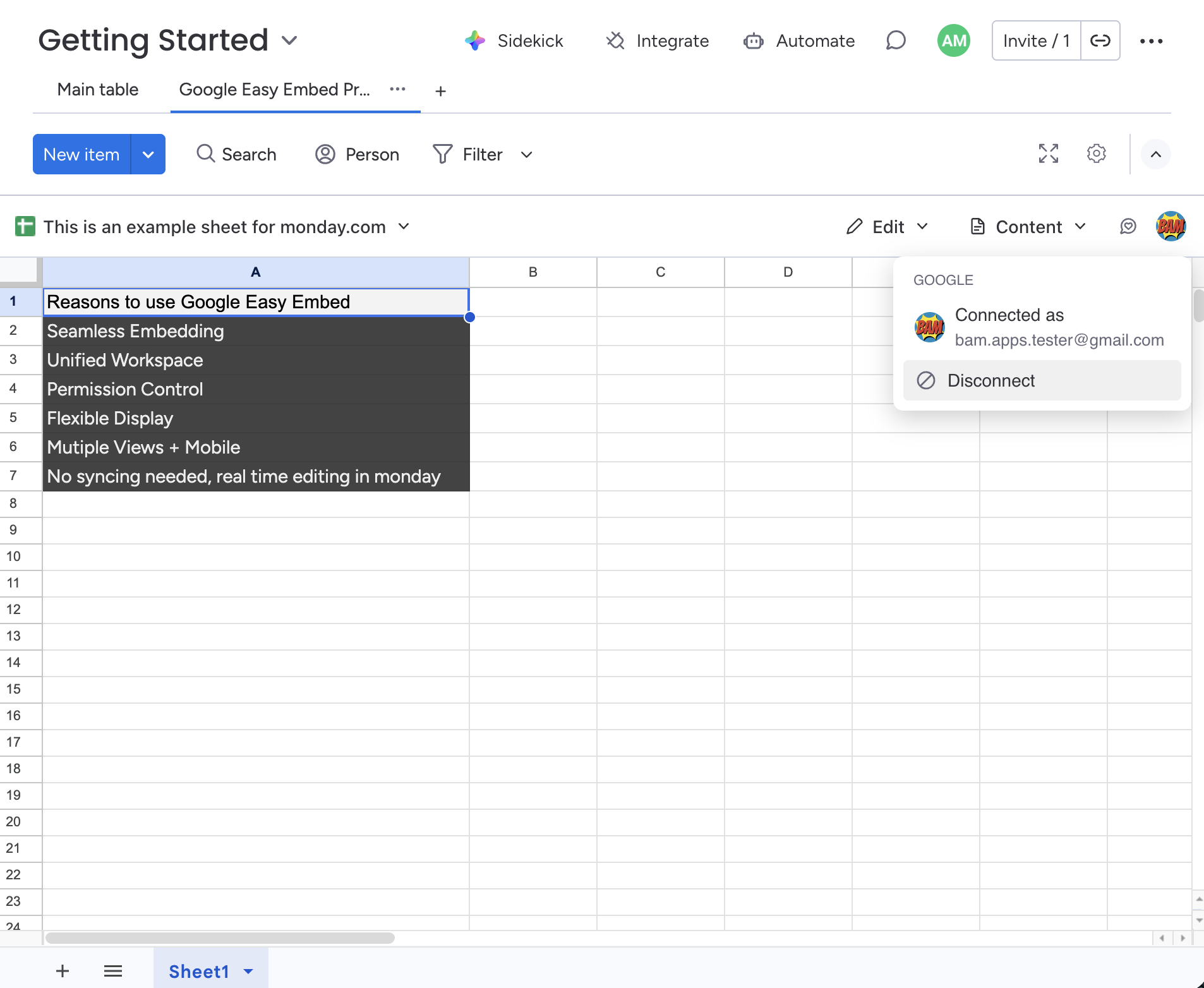
To disconnect, select Disconnect from the menu. To reconnect, click Connect to Google from the same menu at any time.
See Connect to Google for details.