Every message a contributor signs on a Group Card can include a GIF, chosen from Giphy via Group Card’s built-in picker. This article covers how the picker works, what content shows up, and what’s not currently supported.
Opening the GIF picker
When you’re signing a card:
- Open the signing composer (via the bell notification, or directly from the card’s detail page).
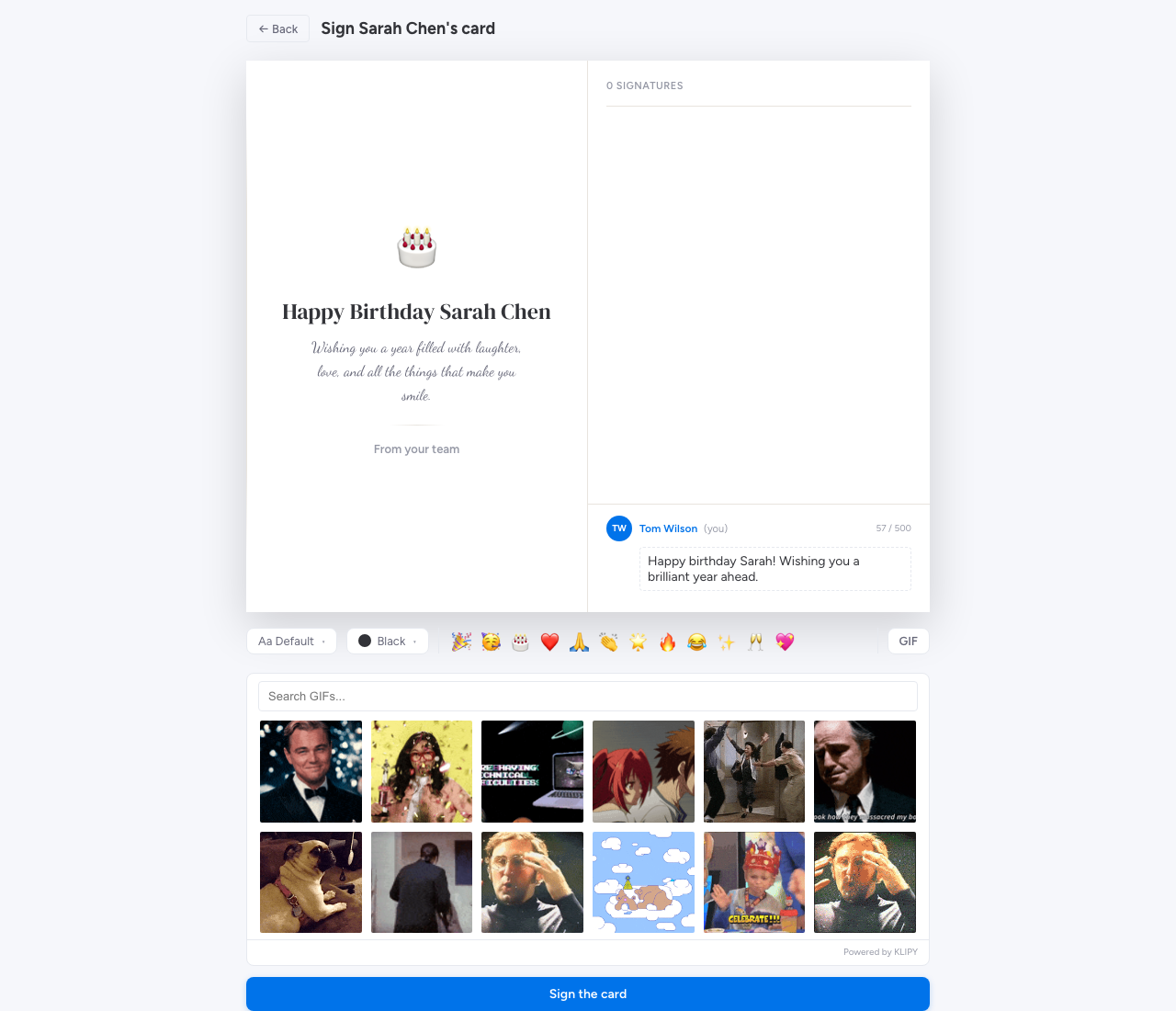
- Click the GIF button under the message textarea.
- The picker opens with trending Giphy results at the top.
Searching for a GIF
Type into the search box at the top of the picker. Group Card sends the query to Giphy and shows the matching results — exactly the same search results you’d see on giphy.com.
Tips that work well:
- Be specific. “high five team” returns better results than “celebration”.
- Try emotion words. “excited”, “thank you”, “good luck” all return strong sets.
- Use the occasion as a search term. “happy birthday”, “work anniversary”, “welcome aboard” — Giphy has well-curated sets for the obvious occasions.
Picking a GIF
Click any thumbnail in the picker. The GIF is inserted into your message above your text. To swap it out, click the GIF in your message and pick a different one. To remove it, click the GIF and choose Remove.
What appears in the picker
Group Card uses Giphy’s standard search API. The content available is the same Giphy content you’d see on any other Giphy integration — a curated catalogue with content moderation for general-audience tags. There’s no separate “workplace-safe” filter beyond Giphy’s defaults, so:
- For formal occasions or anniversaries, pick a tasteful template + skip the GIF if you’re unsure.
- For internal cards in informal teams, the defaults are fine.
Custom image uploads
Custom image uploads aren’t currently supported. The imagery on a card comes from two sources only:
- The chosen template (cover artwork).
- GIFs picked from Giphy via the signing composer.
If you have a specific image you want to share with the recipient — for example a team photo at the office or a photo from the trip the card is about — the workaround today is to upload the photo to a Google Drive folder or monday.com file column and link to it from your message text.
We’re tracking custom image uploads as a planned feature. Contact support@bam-apps.com if it’s a blocker.
Stickers
Group Card doesn’t have a separate sticker library today — the GIF picker covers most of that ground, because Giphy already includes a large catalogue of stickers (transparent-background GIFs). Search for “sticker” in the picker to see them.