Group Card collects signatures from members of your monday.com workspace. This article covers how to invite contributors and how to nudge anyone who hasn’t signed yet.
Workspace members only. Group Card uses monday.com notifications to invite signers, so contributors must have a full member seat in your workspace. Viewers and guests can’t sign — and the recipient is automatically excluded so they can’t peek at their own card.
Inviting from the wizard
The fourth step of the creation wizard is the invite step. After Group Card creates the card, you can immediately pick teammates to invite.
You can also invite people later from an existing card — read on.
Inviting from the card detail page
Open any card and you’ll land on the Signers tab by default.
Click the Invite toggle near the top of the tab. The invite panel opens with a multi-select list of workspace members.
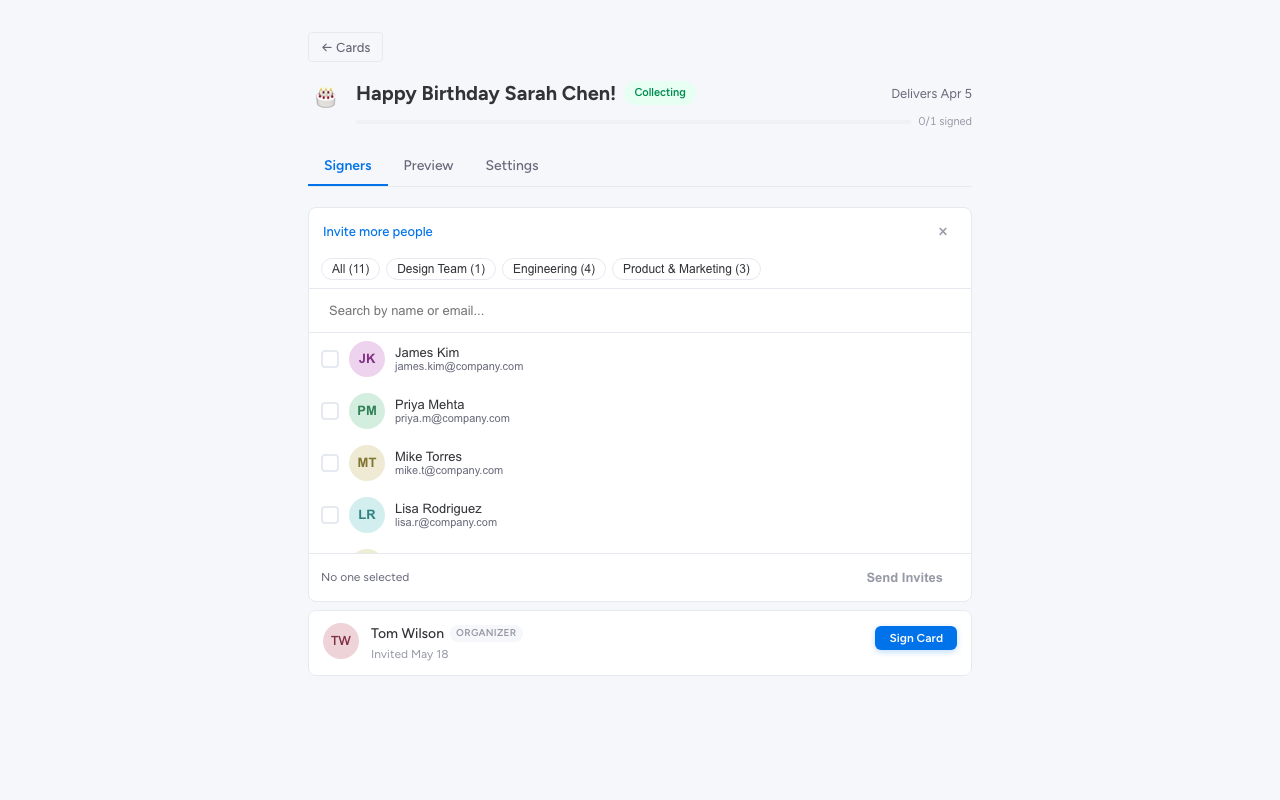
Tick the people you want to invite, then click Send invites. Each invitee gets a monday.com bell notification with a link straight to the signing page.
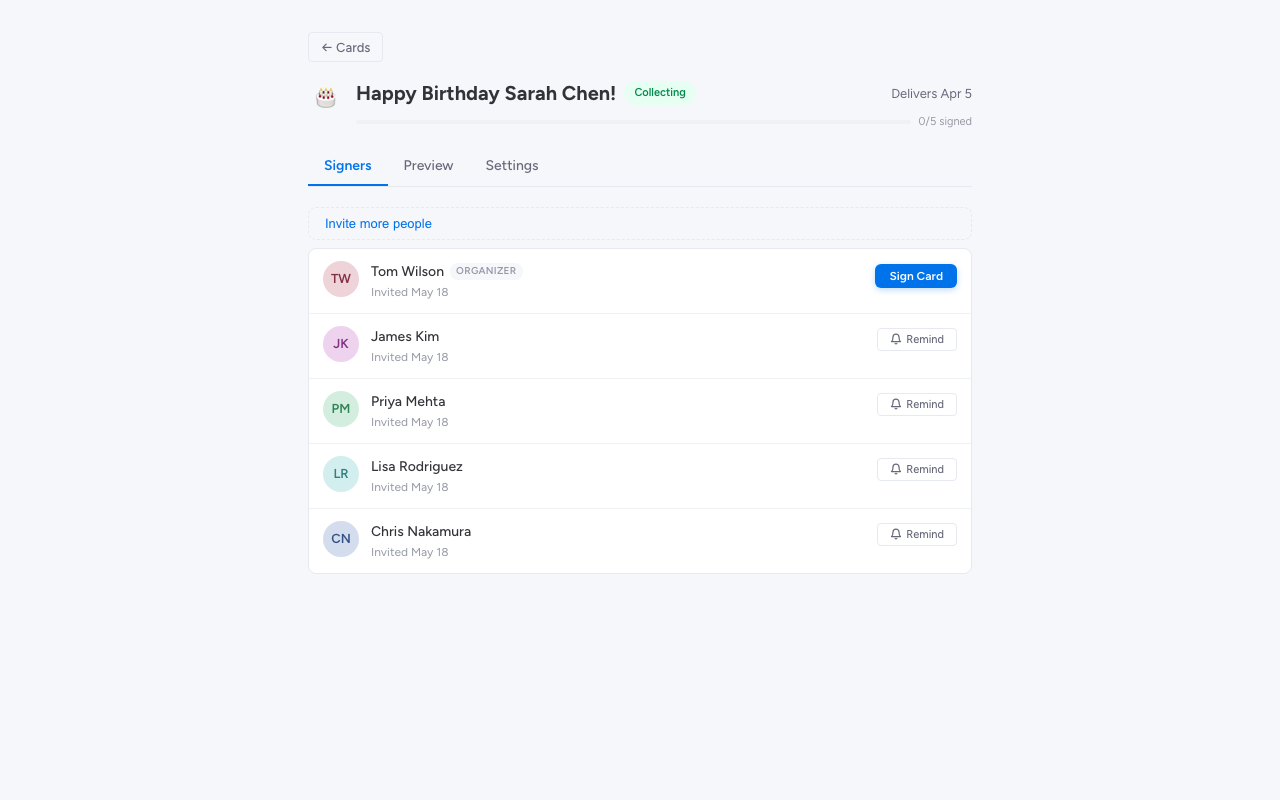
After sending, the invitees appear in the Signers tab as Waiting rows:
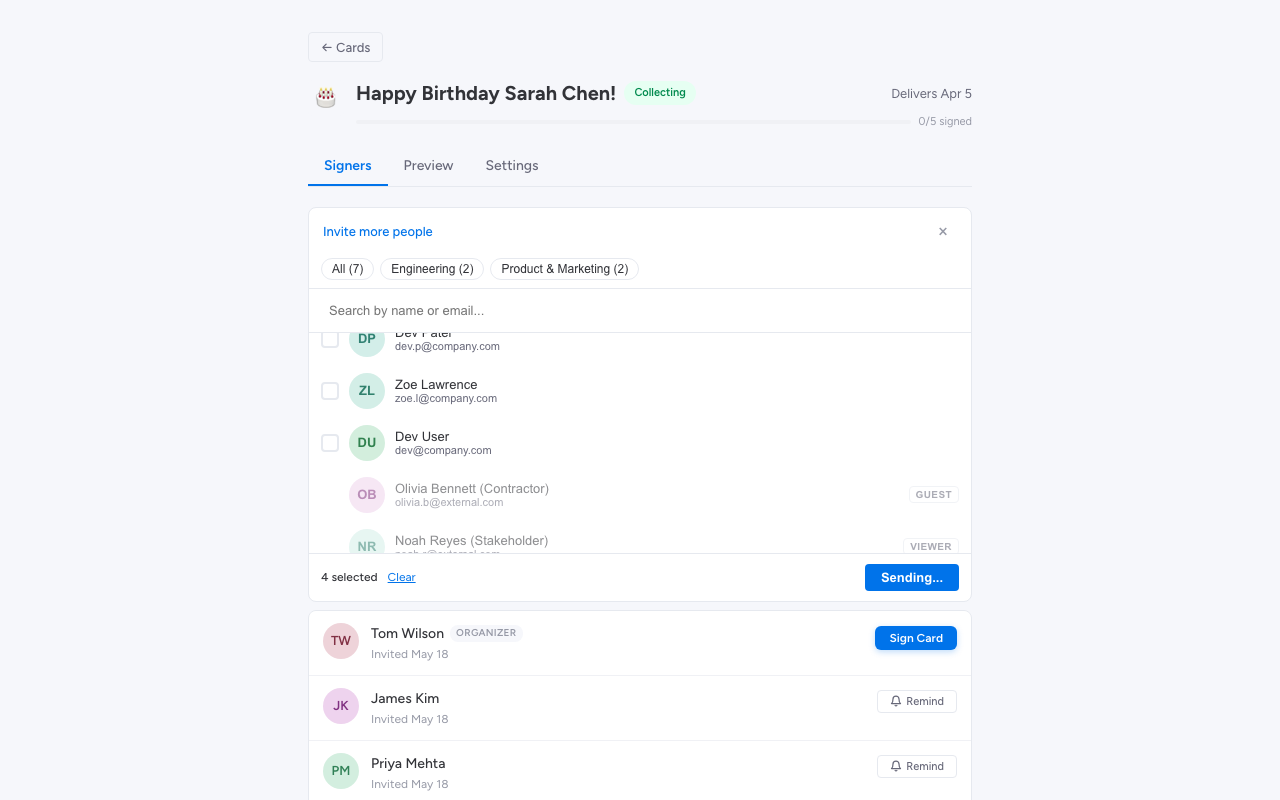
Self-invite is blocked. You can’t invite yourself, and you can’t invite the recipient (otherwise the surprise would be ruined).
Nudging unsigned contributors
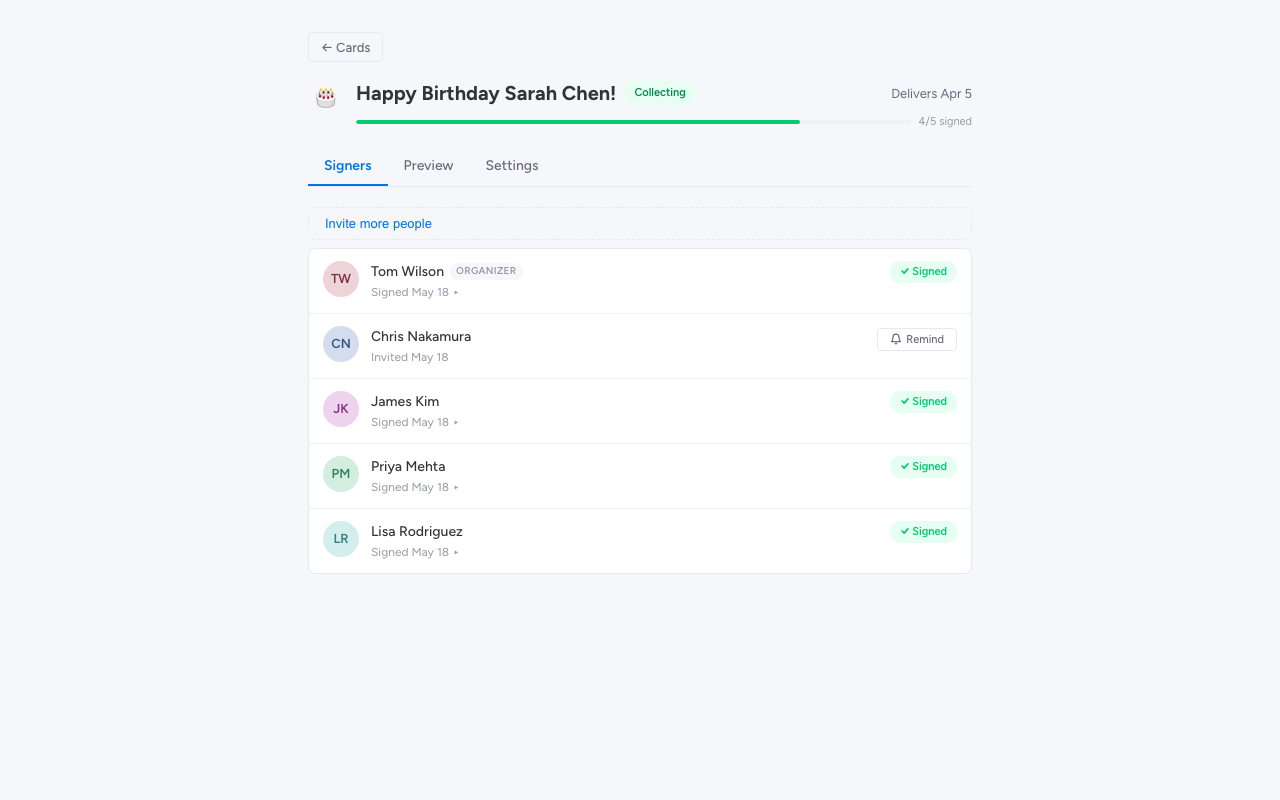
If someone hasn’t signed yet, you don’t need to chase them in Slack or DM them individually. Each waiting row has a Remind button — click it to send a nudge notification. The contributor gets a fresh bell notification linking back to the signing page.
Send nudges as often as you need. There’s no rate limit, but use your judgement — once a couple of days before delivery is usually plenty.
Tracking who has signed
The Signers tab shows everyone you’ve invited along with their status:
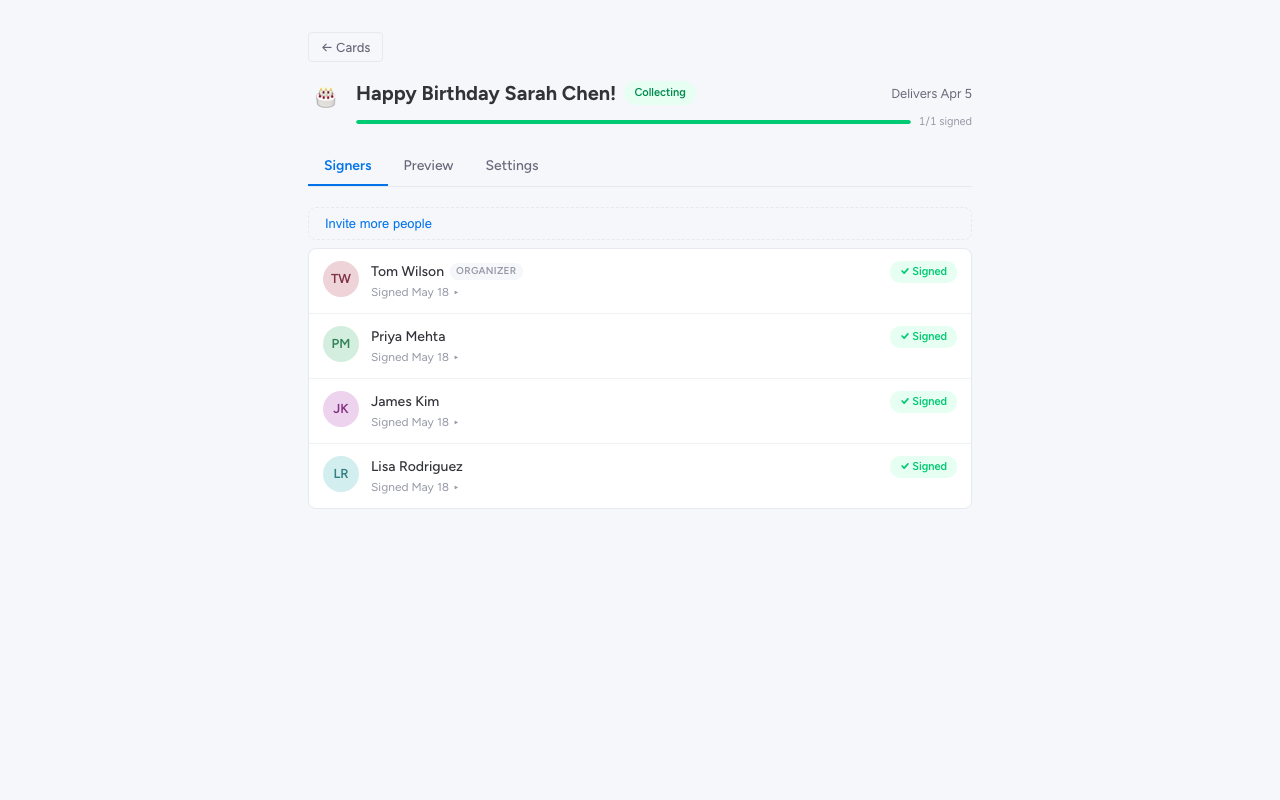
- Signed — the contributor has submitted their message. Click their row to expand it and see the message they wrote.
- Waiting — the contributor has been invited but hasn’t signed yet. Use the Remind button to nudge them.
The progress indicator at the top of the tab shows the running total — for example “3 of 8 signed”.
Removing someone you’ve invited
If you invited the wrong person or someone shouldn’t be on the card, expand their row in the Signers tab and use the remove action. Their invitation is revoked and they no longer see the card.