Group Card ships with 100+ professionally designed templates, organised by the 9 occasion types. Each template has its own cover artwork, default cover message, and (sometimes) a baked-in opening effect — so once you pick a template, most of the visual decisions are made for you.
You’ll meet templates in two places: the standalone Templates tab in the top nav, and the template picker inside the card creation wizard. This article covers what a template contains and how the two surfaces differ; for a deeper tour of the standalone browser see Browsing the Templates library.
Where you’ll see templates
The Templates tab
The Templates tab in the top nav is the full library — every template across every occasion, in one grid. It’s the right starting point when you’re not sure which occasion fits yet, or when you want to browse the full range before committing to one.
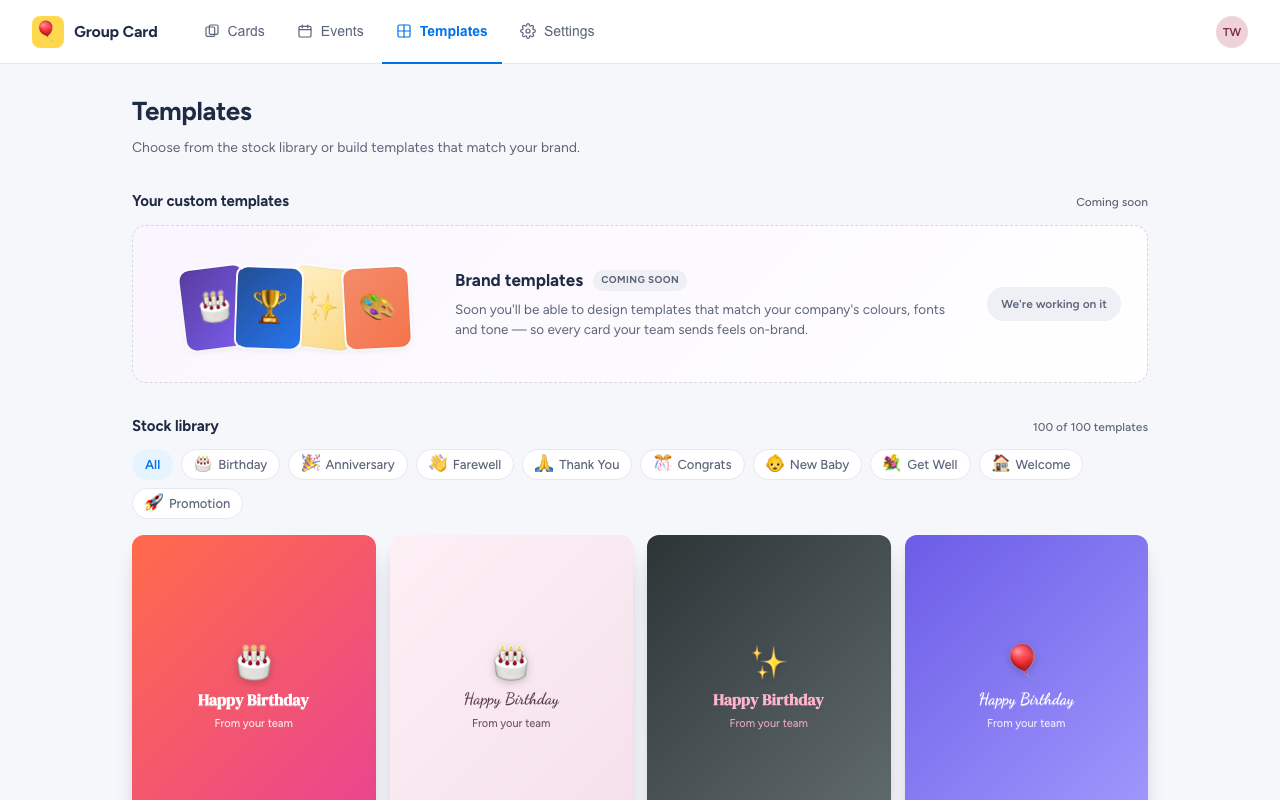
The pill row above the grid filters by occasion (🎂 Birthday, 🎉 Anniversary, 👋 Farewell, …). Click a tile to select it, then Create card from this template → in the bottom bar to jump into the wizard with that template — and its occasion — already chosen.
The template picker in the creation wizard
Step 2 of the card creation wizard is the template picker. Unlike the standalone tab, it’s pre-filtered to the occasion you picked in Step 1 — so for a Birthday card, you only see birthday templates; for a Farewell, only farewell ones.
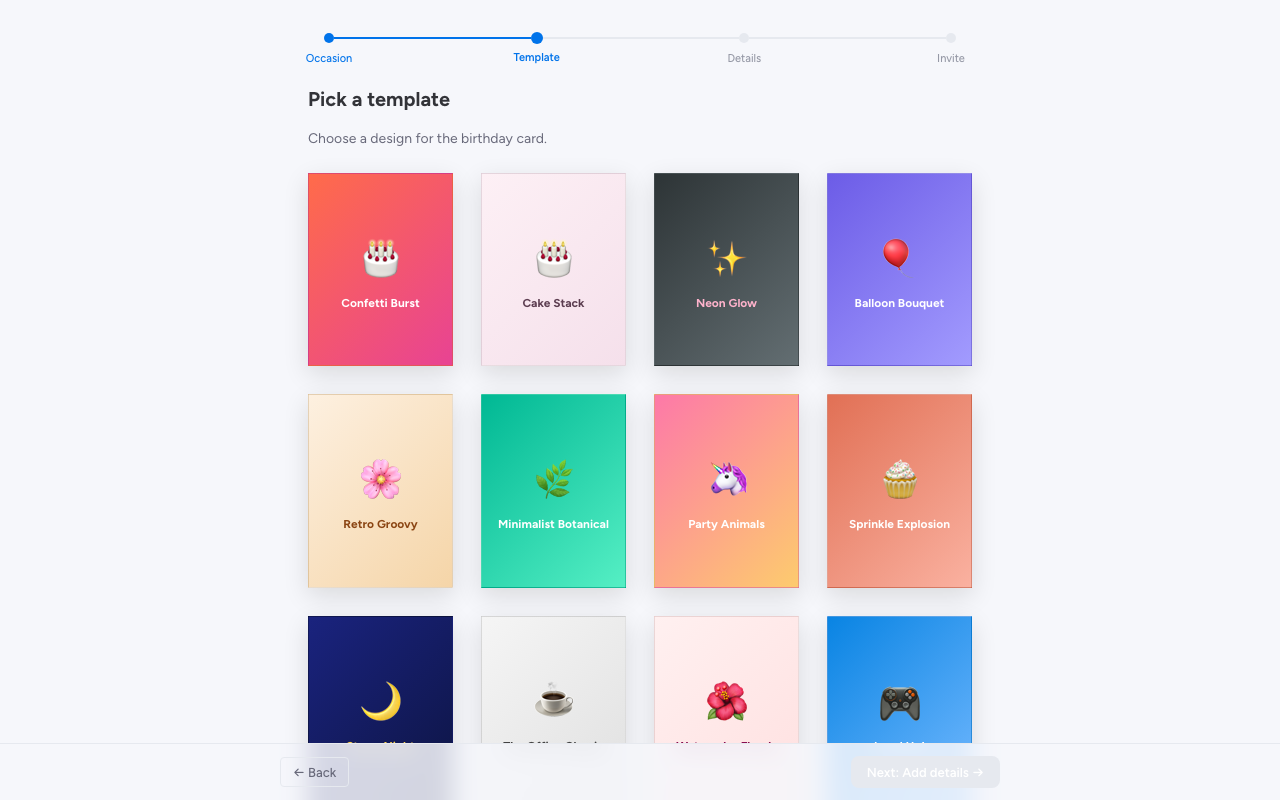
Click a thumbnail to select it; the selected template gets a coloured border and the live preview pane on the left updates. There’s no preview-with-content step before you commit, but you can switch templates later (see below).
Which to use? If you already know the occasion and just need to pick artwork, the in-wizard picker is faster — you skip a screen and stay in flow. If you’re exploring, the standalone Templates tab is where to go.
What’s in a template
Every template includes:
- Cover artwork. The image the recipient sees on the front of the card when it opens.
- Default cover message. A short greeting on the inside cover (“Happy Birthday, Sarah!”). You can edit it during card creation.
- Themed background. Pattern and colours that match the occasion.
- Opening effect. Confetti, balloons, sparkles, or none — see the creating a card walkthrough.
Templates don’t change what contributors can do — fonts, colours, GIFs, and the message limit are the same across all templates. The template controls the look of the card itself, not the contributors’ tools.
Tip. Match the template’s vibe to the recipient. Group Card’s templates range from playful (balloon-and-confetti birthday) to understated (minimal anniversary or farewell). For senior recipients or formal moments, the minimal templates usually read better than the loud ones.
Switching template after creation
You can change the template from the organiser dashboard at any point before delivery. Open the card, click into the card details, and choose a different template from the gallery.
Everything else stays — the recipient, delivery date, contributors, and any messages already written — but the cover artwork, default cover message, and opening effect update to match the new template.
Switching after the recipient has opened the card doesn’t change what they already saw.
Promotion templates
The Promotion occasion type covers career-milestone moments — a teammate moving up, taking on a new title, or stepping into a new role. Templates lean celebratory but professional, and the smart prompt nudges contributors to write something about the recipient’s impact rather than just “congrats!”.
What you can’t change
A few things are baked into the template and can’t be customised today:
- The cover artwork itself.
- The opening effect (confetti / balloons / sparkles / none) — it comes from the template.
If you want a different opening effect than your chosen template’s default, switch to another template in the same occasion family that has the effect you want.