Every card you organize has a detail page split across three tabs: Signers, Preview, and Settings. This article tours each tab so you know what’s available where.
Two different “Settings” tabs. This article documents the per-card Settings tab, inside an individual card. The Settings tab in the top nav is for workspace-wide preferences — see Workspace settings for that one.
Open any card from the Cards tab to land on the detail page. (If you don’t have any cards yet, the Events tab is the fastest way to start one — pick an upcoming birthday or anniversary and Group Card prefills the wizard for you.)
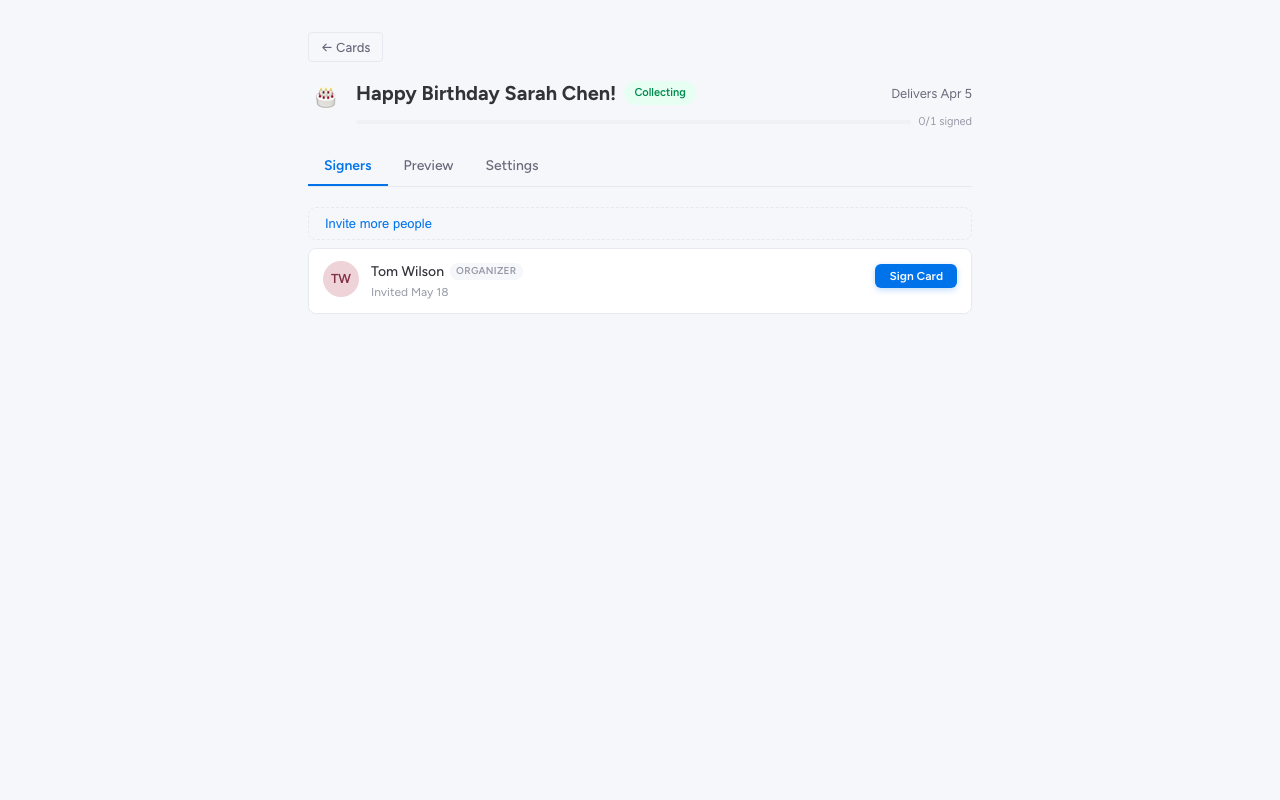
Signers tab
The default tab. It lists everyone associated with the card — you (the organizer), the people you’ve invited, and anyone who has signed.
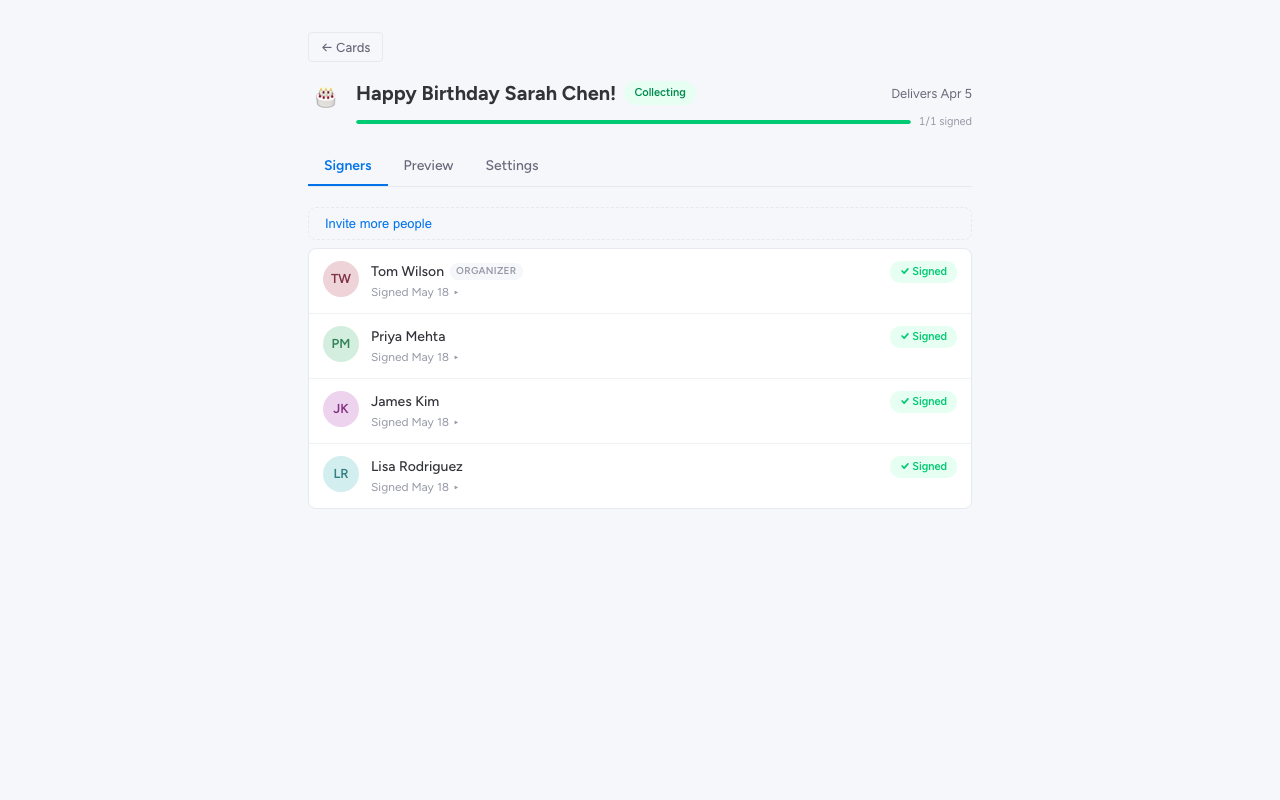
What you can do here:
-
See progress. A progress indicator near the top shows the running total of signatures.
-
Sign as the organizer. If you haven’t signed your own card yet, the Sign card button takes you straight to the composer.
-
Invite more contributors. Click the Invite toggle to open the workspace member picker. See Inviting contributors for the full flow.
-
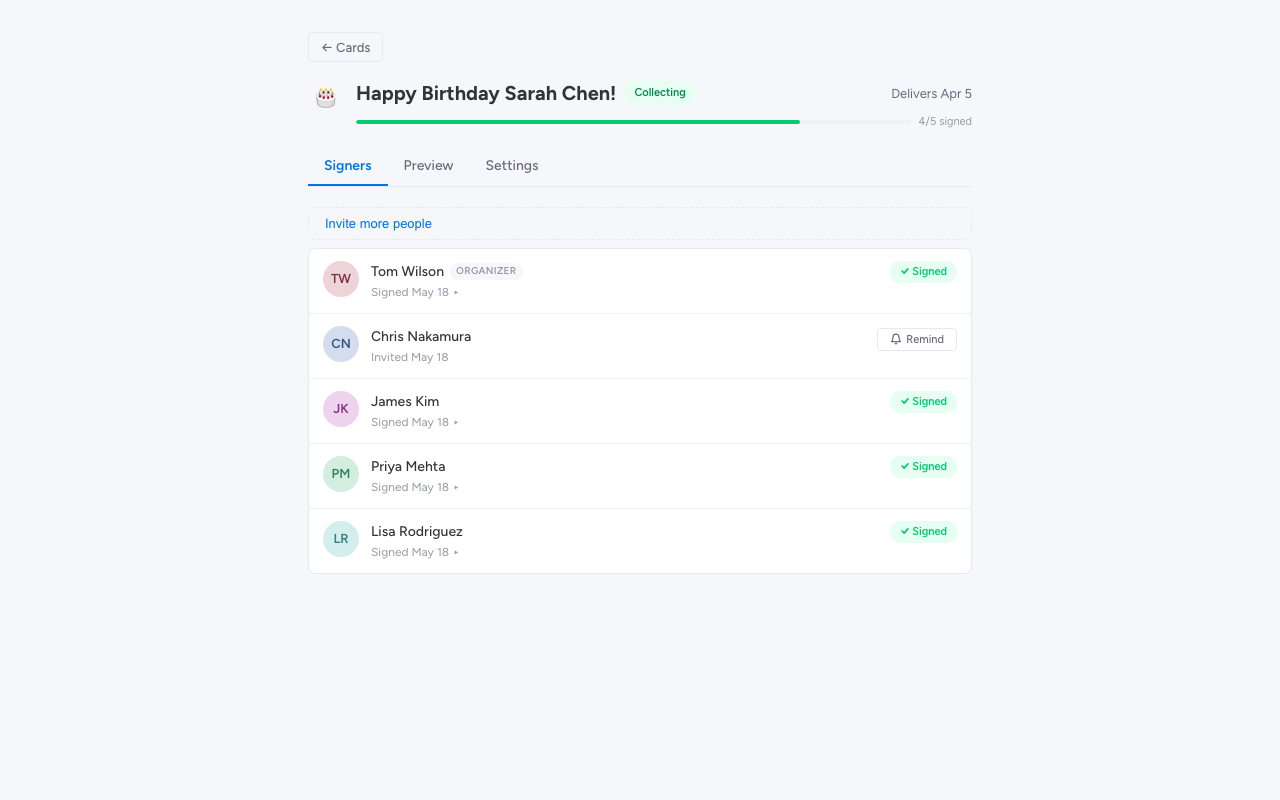
Nudge unsigned contributors. Each waiting row has a Remind button. Click it to send a fresh notification.
-
Read signed messages. Click any signed row to expand it and read the contributor’s message. Organizers can also delete a message from this expanded view if it’s inappropriate or accidentally posted — there’s a confirmation dialog before the deletion is permanent.
Preview tab
The Preview tab renders the card exactly as the recipient will see it on delivery day, including the opening animation. It’s the best way to spot-check the cover message, the template, and the messages flow before delivery.
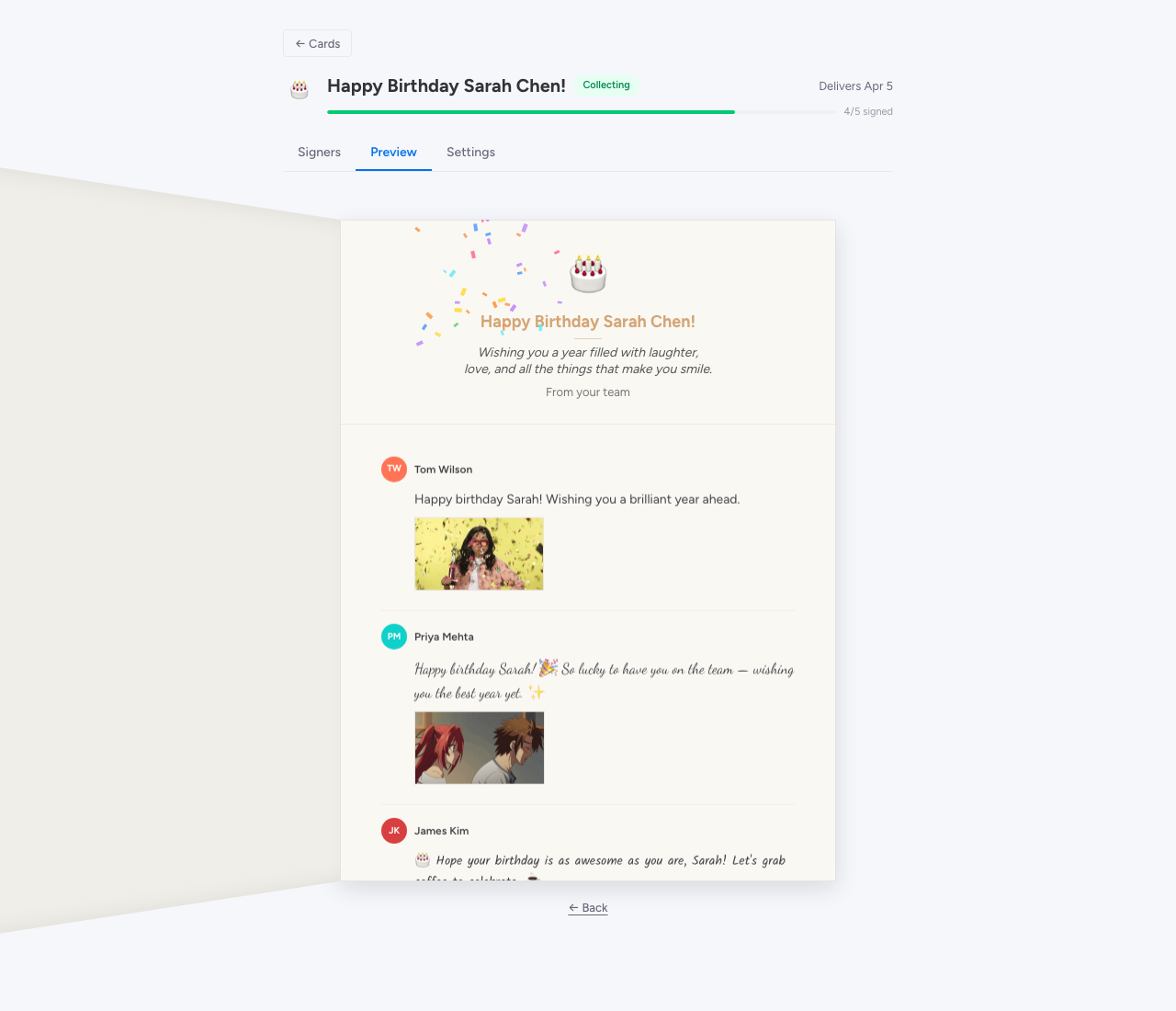
You can click the card to play the opening animation, just like the recipient will. Your contributors’ messages appear in the order they signed.
Settings tab
The Settings tab is where you change anything about an existing card.
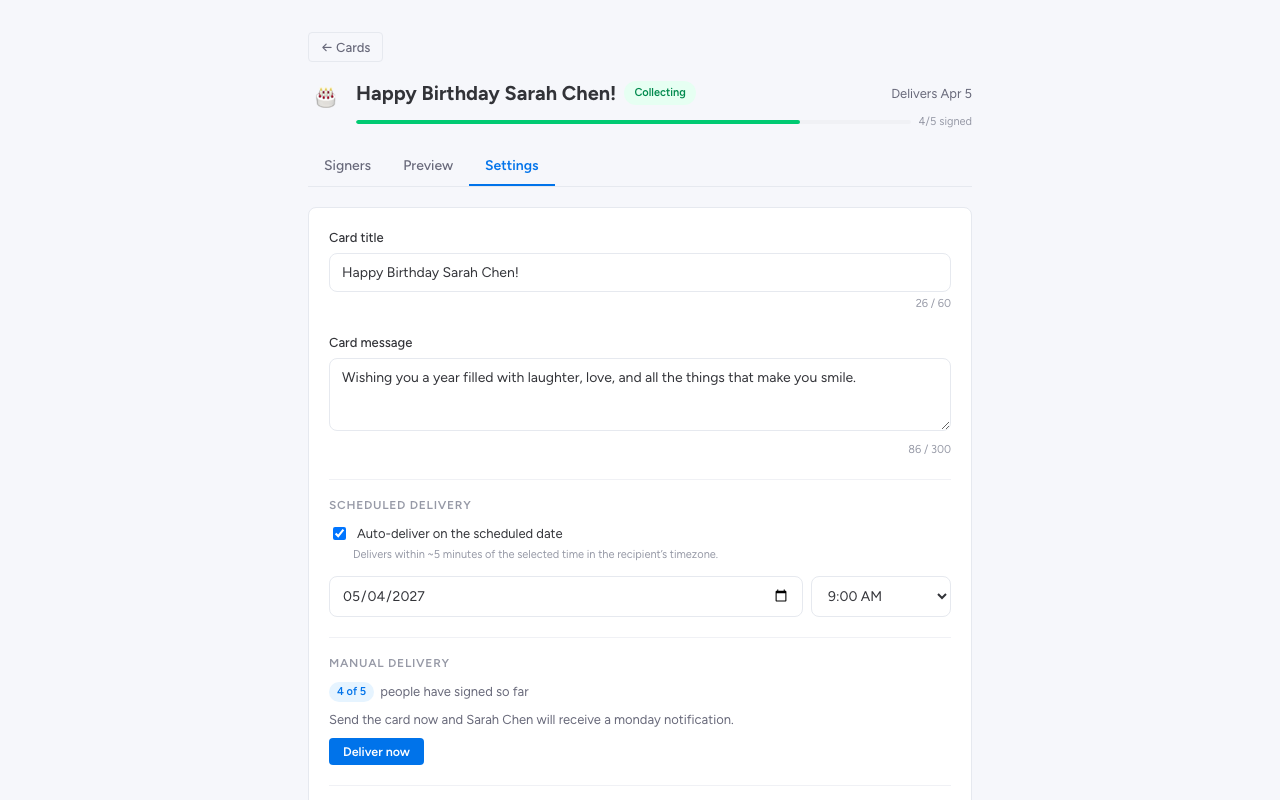
Delivery date. Edit the date and time. The card delivers automatically at the new time.
Allow GIFs. Toggle whether contributors can attach GIFs to their messages. Useful for more formal cards (a Get Well or a serious Thank You) where GIFs might feel out of place.
Cover message and emoji. Edit the message that appears on the inside of the card cover.
Opening effect. Switch between confetti, balloons, or no effect.
Deliver Now. Send the card immediately, before the scheduled date. There’s a confirmation dialog so you don’t fire it off accidentally — see Delivery and the recipient experience.
Delete Card. Permanently delete the card, all messages, and all invitations. This can’t be undone — there’s a confirmation dialog before anything is removed.
Returning to the card list
Click ← Cards at the top of any tab to return to the card list view. Cards are organized by status — Collecting (signatures still being gathered), Scheduled (waiting for delivery date), and Delivered.