When a teammate invites you to sign a Group Card, you’ll get a monday.com bell notification with a link straight to the signing composer. This article walks through the composer.
Opening the signing page
Click the notification you received in monday.com. (Or, if you’re already inside the Group Card app, click the card and then the Sign card button on the detail page.)
The signing page shows a smart prompt for the occasion at the top — for a Birthday card, you might see something like “What’s your favorite memory with Sarah?” — to help you write something specific instead of a generic greeting.
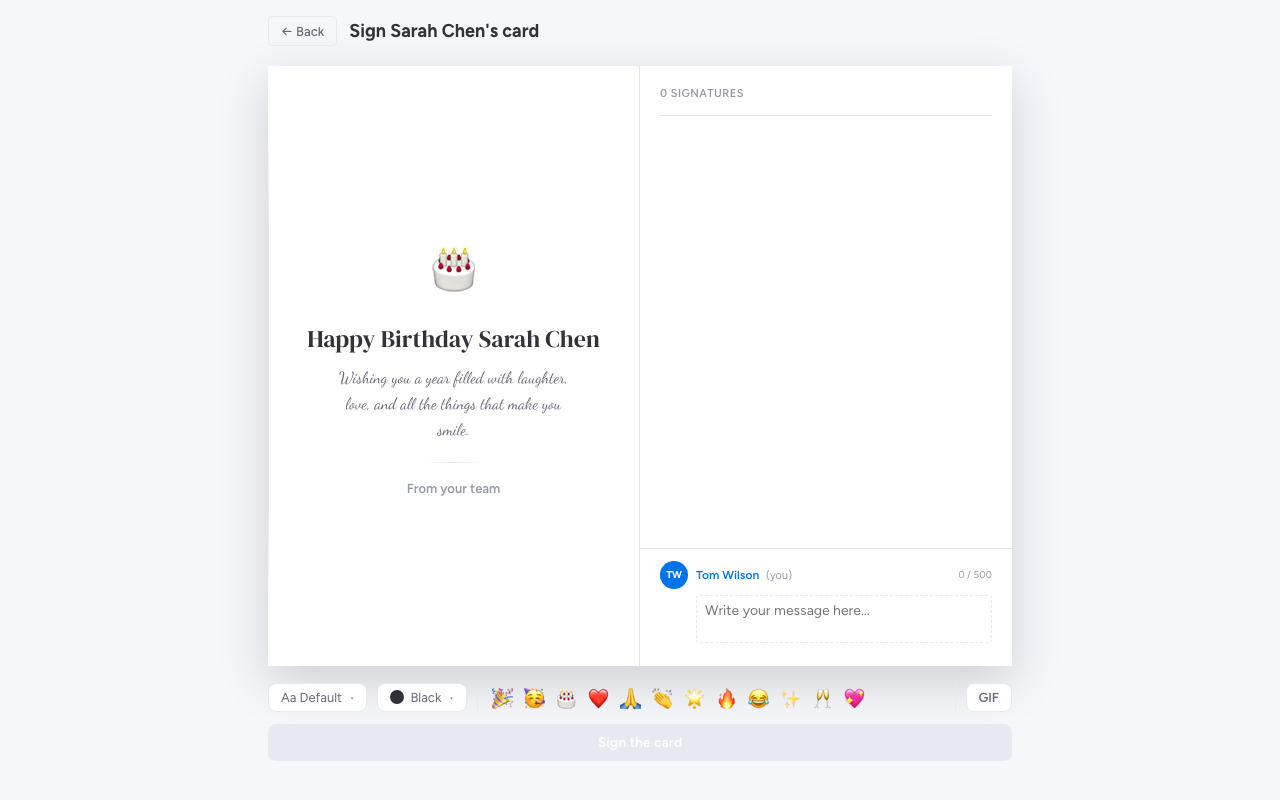
Writing your message
Type your message into the composer. The character counter at the bottom-right of the textarea keeps you within the limit.
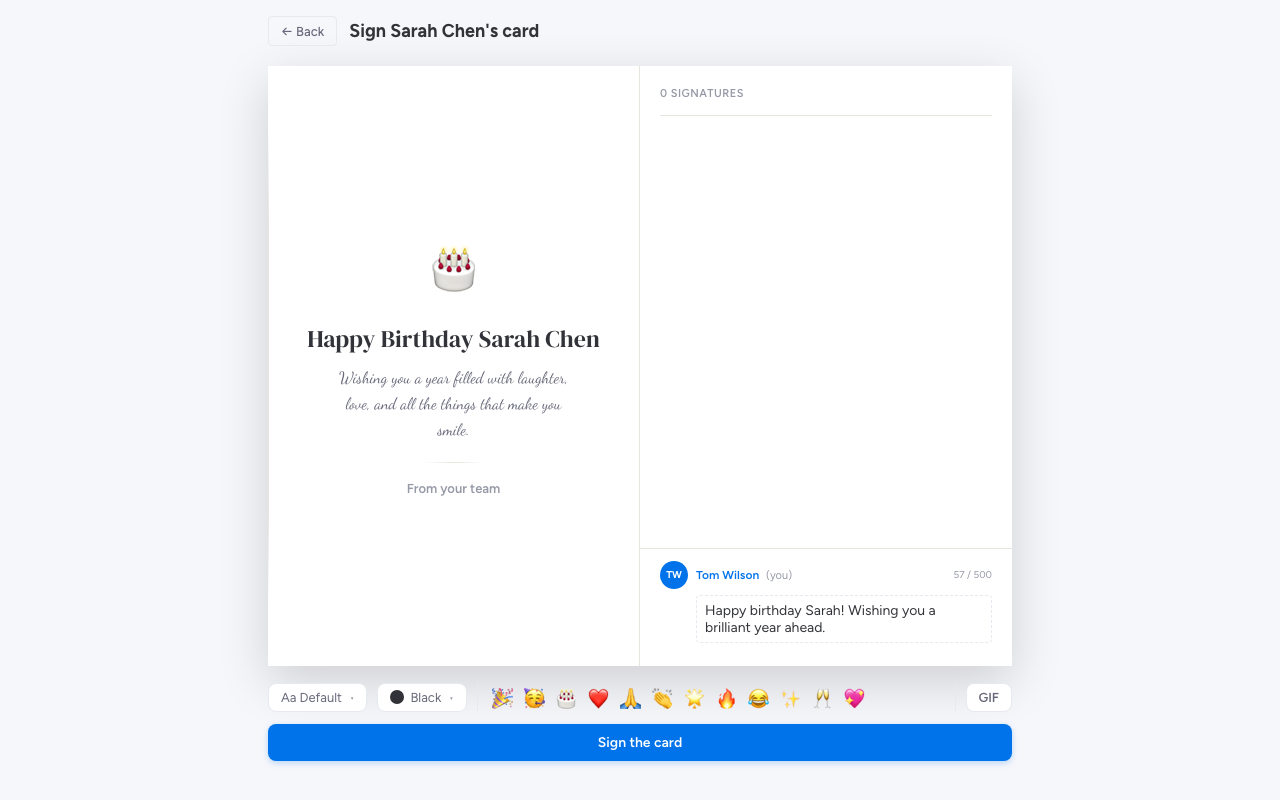
You can:
-
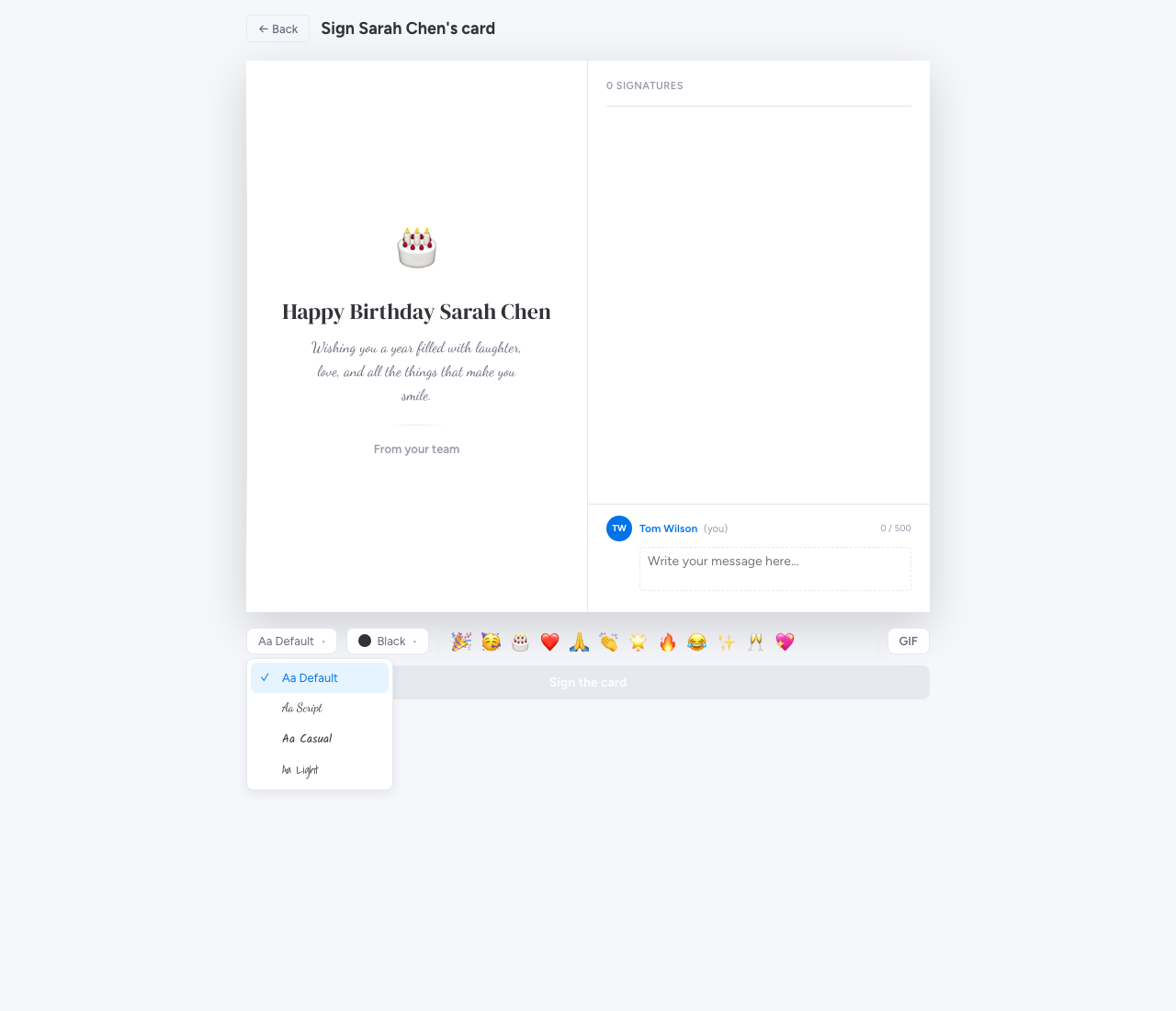
Pick a font. Click the font dropdown to choose from a curated set of fonts (Default, Handwritten, Kalam, Shadows Into Light). Each one has a different feel — Handwritten is great for personal birthday notes, Default for professional thank-yous.
-
Pick a text colour. The colour picker offers a small set of curated colours that look good on every template.
-
Add an emoji. The emoji bar gives you one-tap shortcuts for common emojis (heart, star, party).
Adding a GIF
Click the GIF pill in the composer toolbar to open the GIF picker. The picker shows trending GIFs by default and lets you search Giphy for the perfect one.
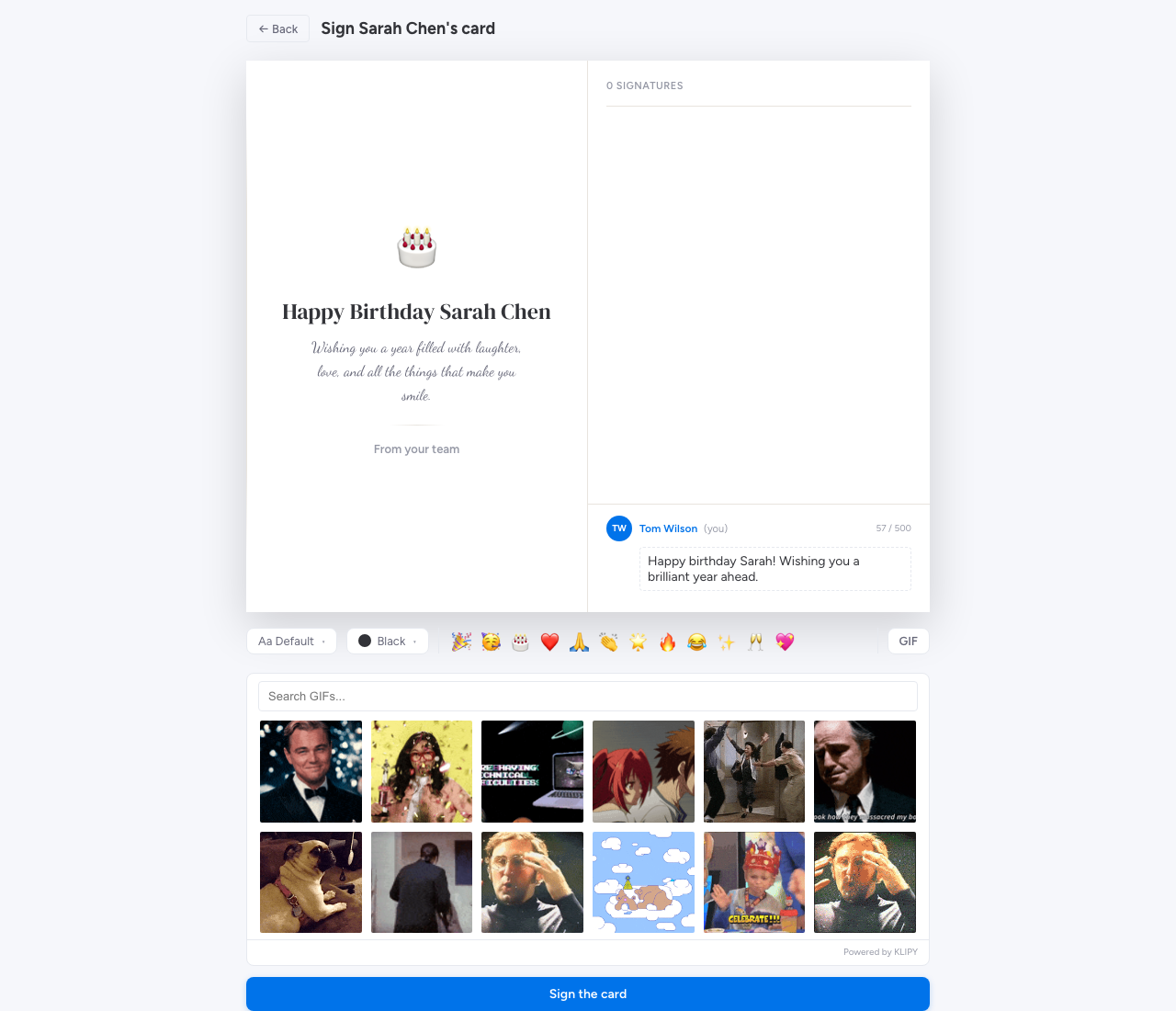
Click any GIF to attach it to your message. Click again to remove it. Only one GIF per message.
GIFs are optional. If the organizer has disabled GIFs for the card, the GIF pill won’t appear.
Submitting your message
When you’re happy with your message, click Submit. Group Card saves your contribution and shows a celebratory confirmation:
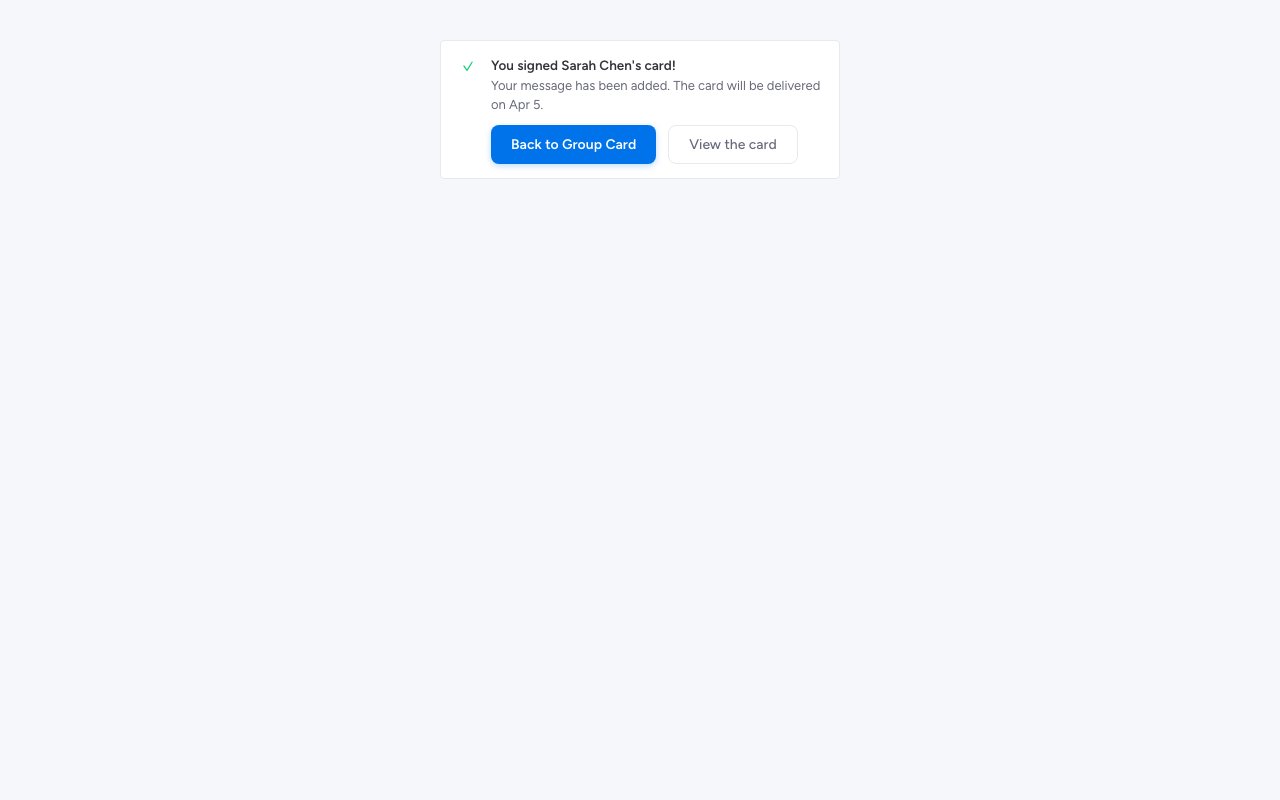
From here you can click View the card to return to the card list, or just close the view.
Editing your message after submitting
Click the same notification (or open the card again) and you’ll see your previous message pre-filled. Edit it, change the font or GIF, and click submit again. Your existing message is replaced — there’s no “version history”.
What signers can’t see
While you’re signing:
- You can see the card cover (the title and cover message the organizer wrote).
- You can’t see other contributors’ messages — those stay private until delivery so the recipient gets the full reveal in one moment.
- The recipient is blocked from signing their own card. If you happen to be the recipient, you’ll see a gentle guard screen — “This card is for you! You can’t peek yet.” — instead of the composer.