This article covers the most common things people run into with Group Card — access restrictions, signing snags, and what to do when something doesn’t behave the way you expect.
”Viewer access restricted”
When a viewer or guest tries to open Group Card, they see this screen instead of the app:
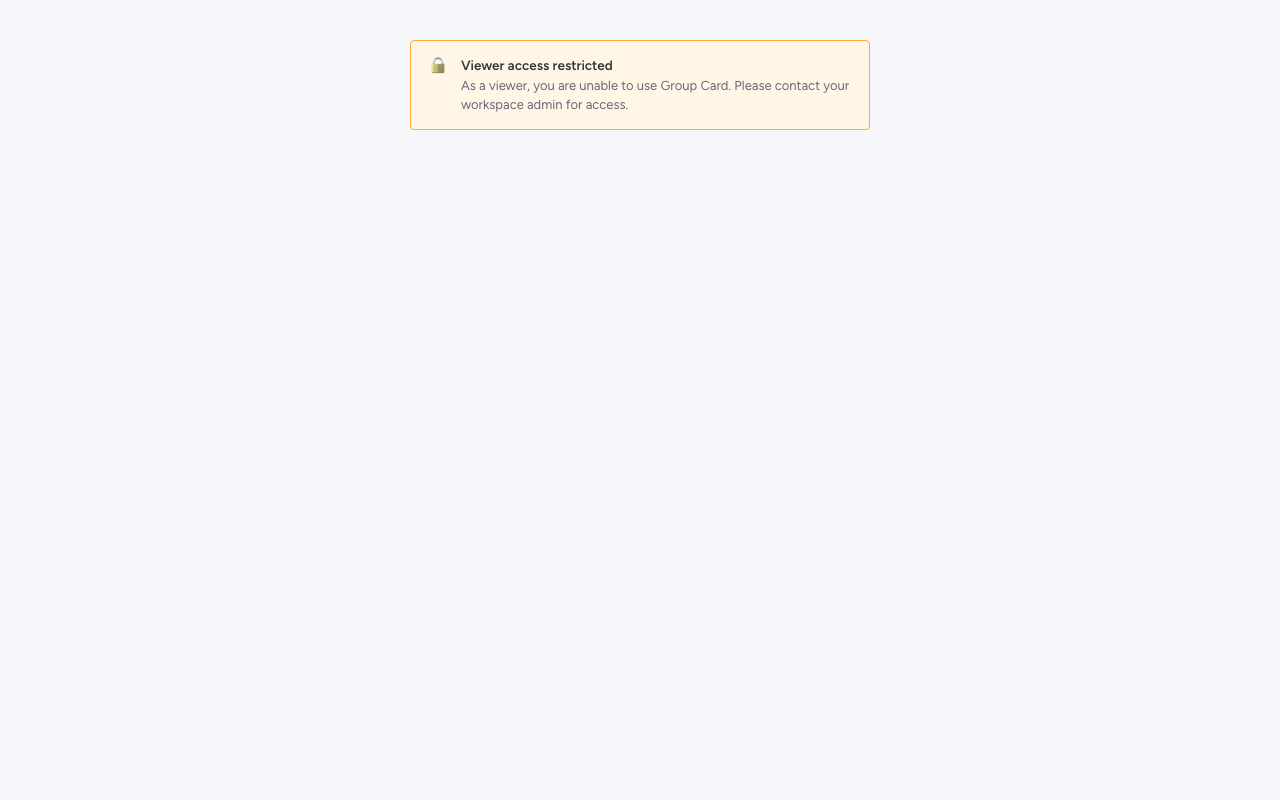
Why. Group Card is built for full workspace members. The notifications, signing, and delivery flow all rely on workspace membership, so viewers and guests can’t participate.
What to do. A workspace admin can upgrade the user’s seat to a member seat in monday.com’s workspace settings. Once their seat is upgraded, they can open Group Card normally.
No data is collected from viewers or guests. They never reach the app, so nothing about them is stored or processed.
”This card is for you! You can’t peek yet.”
If you click a notification and land on a guard screen instead of the signing composer, it’s because you’re the recipient of that card. Group Card hides the contents from the recipient until the card is delivered, so the surprise is preserved.
What to do. Wait for delivery. When the card delivers, you’ll get a notification and the same link will take you to the reveal experience instead.
A teammate didn’t get an invite notification
A few possibilities, in order of likelihood:
- They have notifications muted in monday.com. Ask them to check their notification preferences — the bell icon in the monday.com header.
- They’re a viewer or guest. Group Card invites only go to full members. See the access section above.
- Their email digest is delayed. monday.com batches some notifications into a digest email. The in-app bell notification is real-time, but the email may lag.
You can always nudge them from the Signers tab — the Remind button sends a fresh notification.
I can’t see the card I’m invited to
If a teammate told you you’ve been invited but you can’t find the card:
- Make sure you’re on the right monday.com board — Group Card lives in a specific board view.
- Check the Collecting filter on the card list. Cards you’re invited to (but haven’t been delivered yet) appear under Collecting.
- Click the invitation notification directly — it links you to the right card.
I delivered a card by accident
Delivery is irreversible. Once a card is delivered, you can’t pull it back; the recipient has been notified. The best you can do is reach out to the recipient directly to explain — and remember that even an early card is still a kind gesture.
For the future, the Deliver Now button has a confirmation dialog before delivery completes. Read the dialog text before clicking confirm.
A signed message is inappropriate or wrong
Organizers can delete individual messages from a card. Open the card, expand the signed row in the Signers tab, and use the remove action. There’s a confirmation dialog before the deletion is permanent.
This is also the right tool if a contributor signed but then asked you to remove their message after the fact.
I want to delete the whole card
Open the card, switch to the Settings tab, and click Delete Card. The confirmation dialog spells out that all messages, all invitations, and the card itself will be removed permanently.
Still stuck?
If you’ve tried the steps above and something still isn’t right, email support@bam-apps.com with:
- A short description of what you tried to do
- What happened instead
- The monday.com workspace name (we can find the relevant logs from there)
We usually reply within one business day.