Every message a contributor signs on a Group Card can include a GIF and any number of emoji. This article covers both — the Giphy-powered GIF picker, the quick-insert emoji bar, and what’s not currently supported.
Adding a GIF
When you’re signing a card:
- Open the signing composer (via the bell notification, or directly from the card’s detail page).
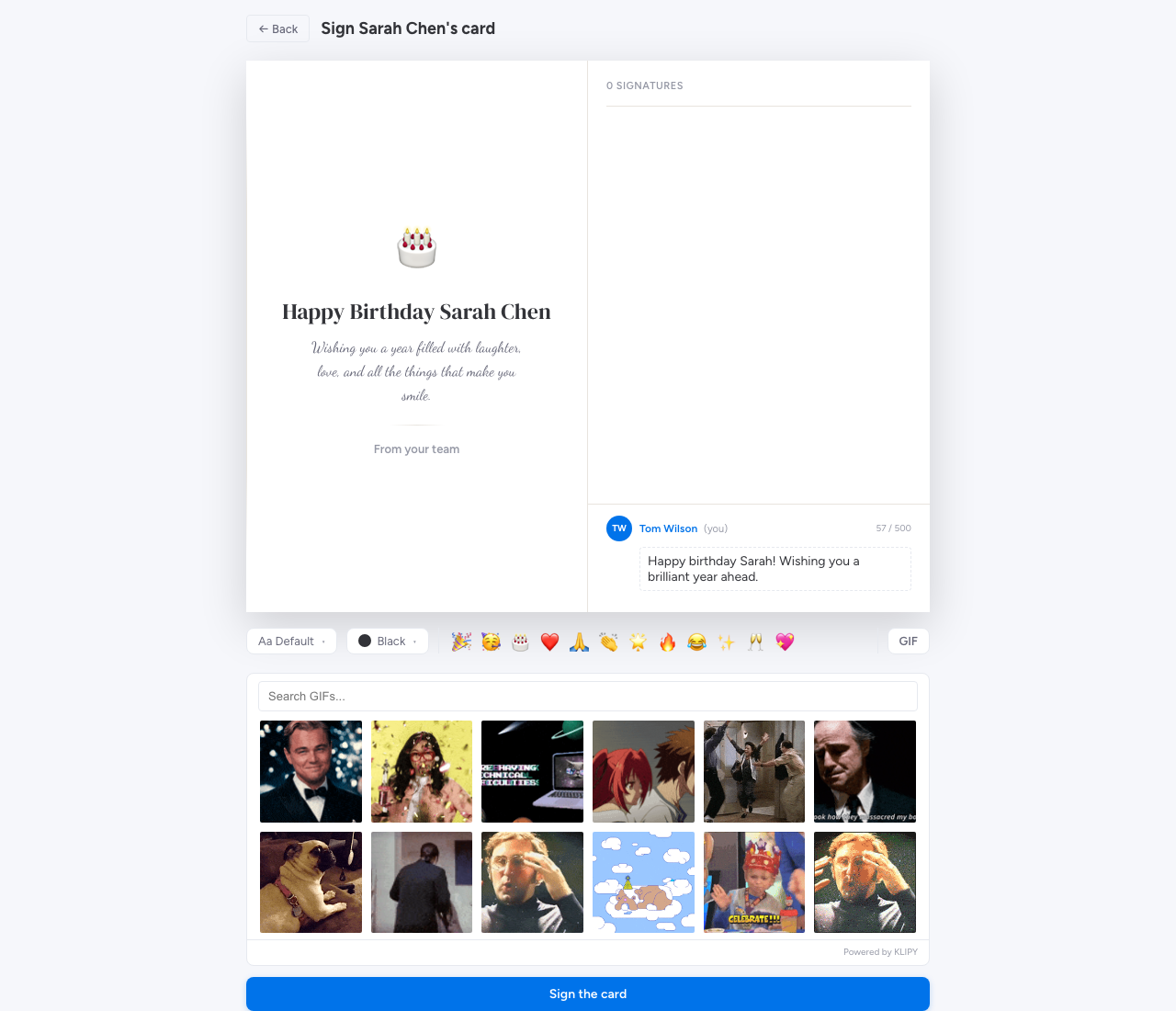
- Click the GIF button under the message textarea.
- The picker opens with trending Giphy results at the top.
Searching
Type into the search box at the top of the picker. Group Card sends the query to Giphy and shows the matching results — exactly the same search results you’d see on giphy.com.
Tips that work well:
- Be specific. “high five team” returns better results than “celebration”.
- Try emotion words. “excited”, “thank you”, “good luck” all return strong sets.
- Use the occasion as a search term. “happy birthday”, “work anniversary”, “welcome aboard” — Giphy has well-curated sets for the obvious occasions.
Picking and swapping
Click any thumbnail to insert the GIF above your text. To swap it out, click the GIF in your message and pick a different one. To remove it, click the GIF and choose Remove.
What appears in the picker
Group Card uses Giphy’s standard search API. The catalogue is the same content moderated for general audiences that other Giphy integrations use — there’s no separate “workplace-safe” filter beyond Giphy’s defaults. For formal cards (a Get Well, a serious Thank You), an organiser can turn off GIFs entirely on the per-card Settings tab via Allow GIFs; see The organizer dashboard for that toggle.
Adding an emoji
A row of 20 quick-insert emoji sits below the message textarea — a curated set that covers most celebratory moments (🎉 🥳 🎂 🎈 ❤️ 🙏 👏 🌟 💪 🔥 😂 🥂 🎊 💐 👋 🤗 ✨ 🏆 🍕 💖). Click any one to drop it at your cursor position in the message.
You can also type any emoji directly using your operating system’s emoji picker:
- macOS —
Ctrl + Cmd + Space - Windows —
Windows + . - Mobile — your usual on-screen emoji keyboard
Both the quick-insert bar and the OS keyboard write the same characters into your message, so use whichever’s faster for you.
Organisers can turn off the quick-insert bar for a specific card on the per-card Settings tab via Allow emoji in messages. Even when off, OS-typed emoji still go through — the toggle only hides the shortcut row.
Custom image uploads
Custom image uploads aren’t currently supported. The imagery on a card comes from two sources only:
- The chosen template (cover artwork).
- GIFs picked from Giphy via the signing composer.
If you have a specific image you want to share with the recipient — for example a team photo or a photo from the trip the card is about — the workaround today is to upload the photo to a Google Drive folder or monday.com file column and link to it from your message text.
We’re tracking custom image uploads as a planned feature. Contact support@bam-apps.com if it’s a blocker.