There are two ways to land on a template in Group Card: pick one inside the creation wizard (filtered to your chosen occasion), or browse the full library from the Templates tab. This article covers the Templates tab.
For an overview of what a template actually contains — cover artwork, default message, opening effect — see Card templates overview.
Opening the gallery
Click Templates in the top nav. The page lists every template in the stock library — 100+ designs across all nine occasion types.
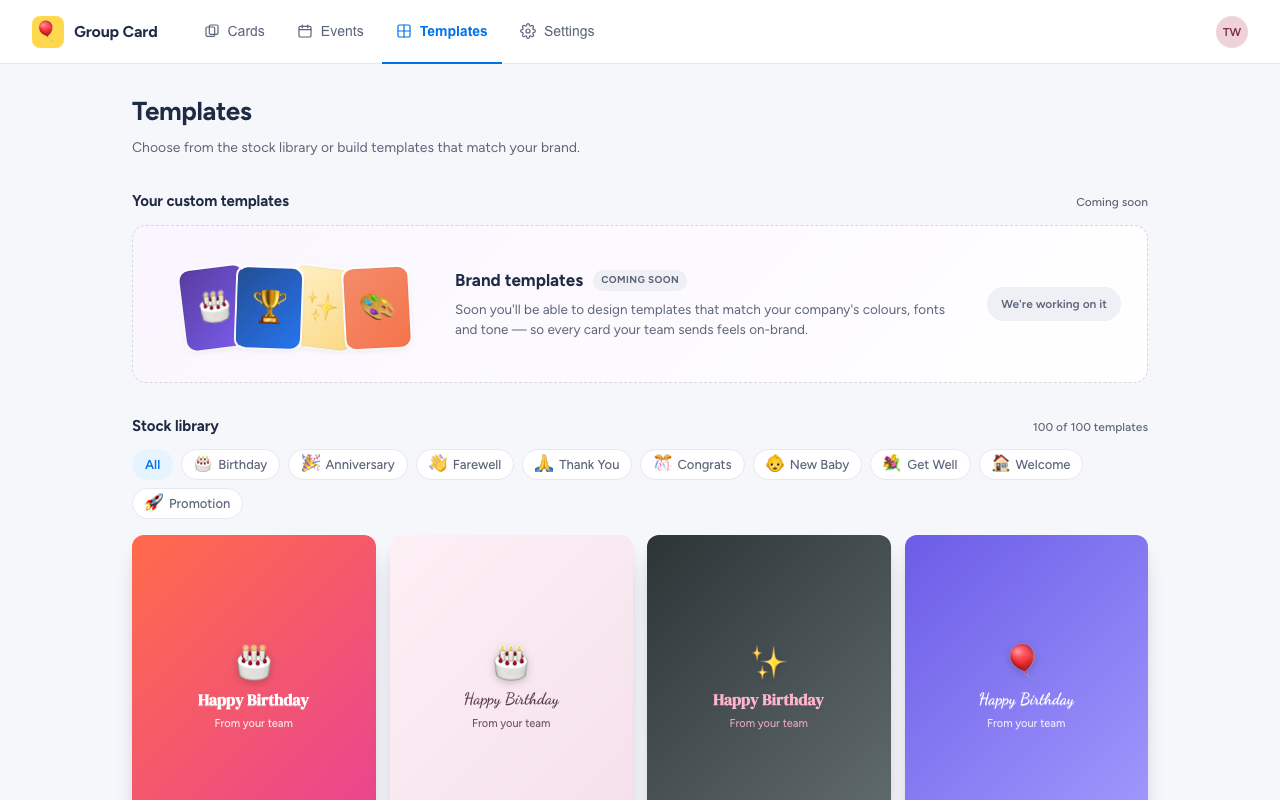
Filtering by occasion
The pill row above the grid filters the gallery. All shows everything; clicking an occasion (🎂 Birthday, 🎉 Anniversary, 👋 Farewell, etc.) narrows the grid to that occasion’s templates.
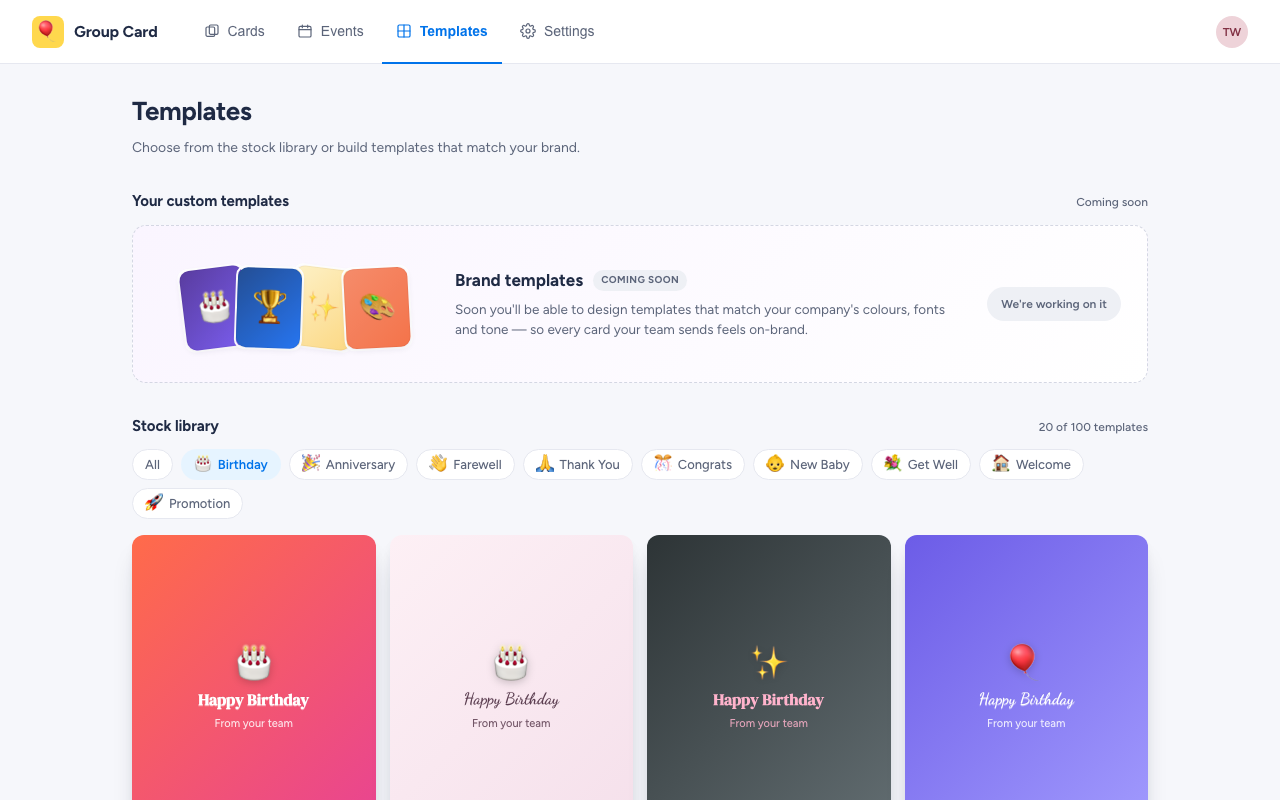
The header counter — “20 of 100 templates” — shows how many match the current filter.
Starting a card from a template
Click any template tile to select it. A bar appears at the bottom of the page with the template’s name, the occasion it’s tied to, and a Create card from this template → button.
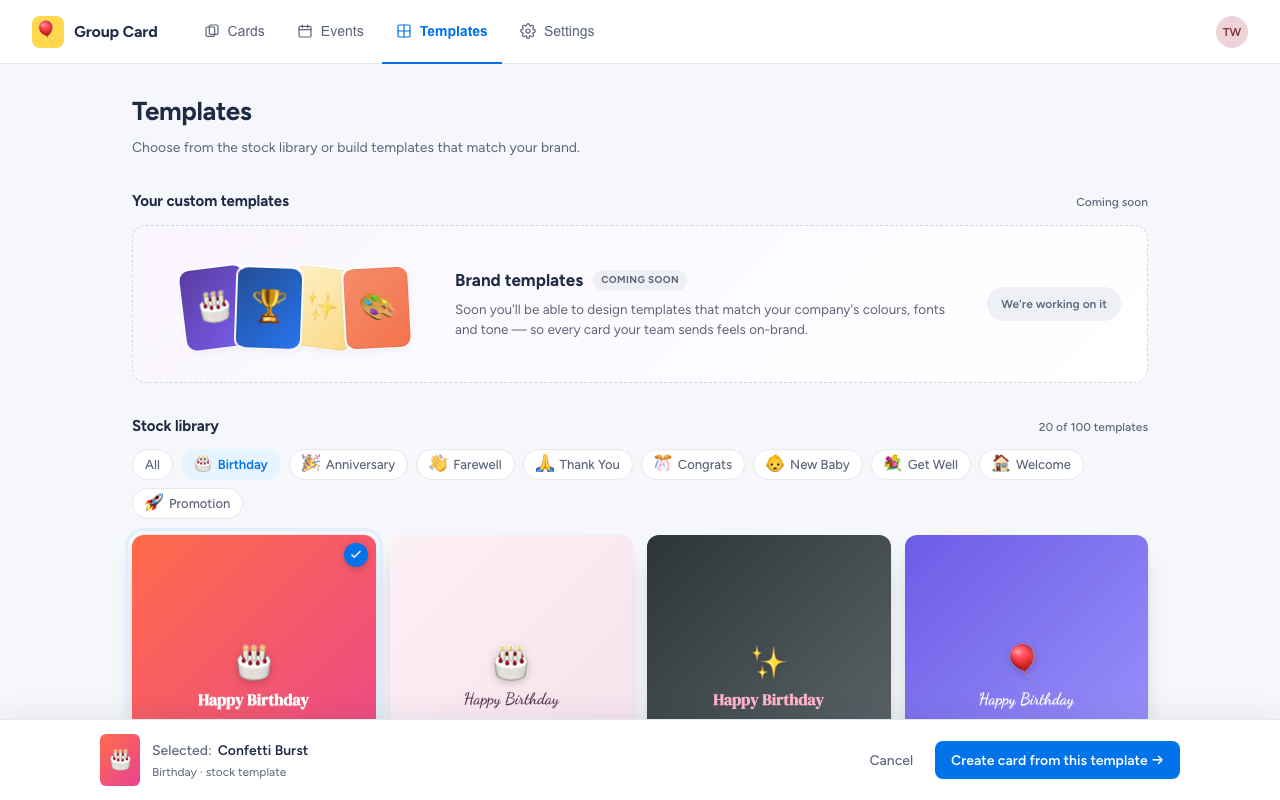
Click Create card from this template → and the creation wizard opens with:
- The occasion preselected to match the template.
- The template already chosen — you start at the recipient step.
From there, the flow is identical to Creating a card — pick a recipient, set the date, invite contributors.
Brand (custom) templates
The top of the Templates page reserves space for Brand templates — templates that match your company’s colours, fonts, and logo. This is a Standard / Premium feature on the roadmap; today the card is a “Coming soon” placeholder. When it ships, this is where workspace admins will design and manage custom templates.
For now, every Group Card workspace uses the same shared stock library.
Stock library vs. wizard gallery
The wizard’s template step (inside the four-step card creation flow) is filtered to the occasion you picked — so for a Birthday card, you only see birthday templates. The standalone Templates tab is the full unfiltered library. Both flows end at the same place: a card with that template applied.
Browse the Templates tab when you want to:
- See what’s available without committing to an occasion first.
- Build a shortlist for a future card.
- Test how a template looks at full size on a desktop monitor.